
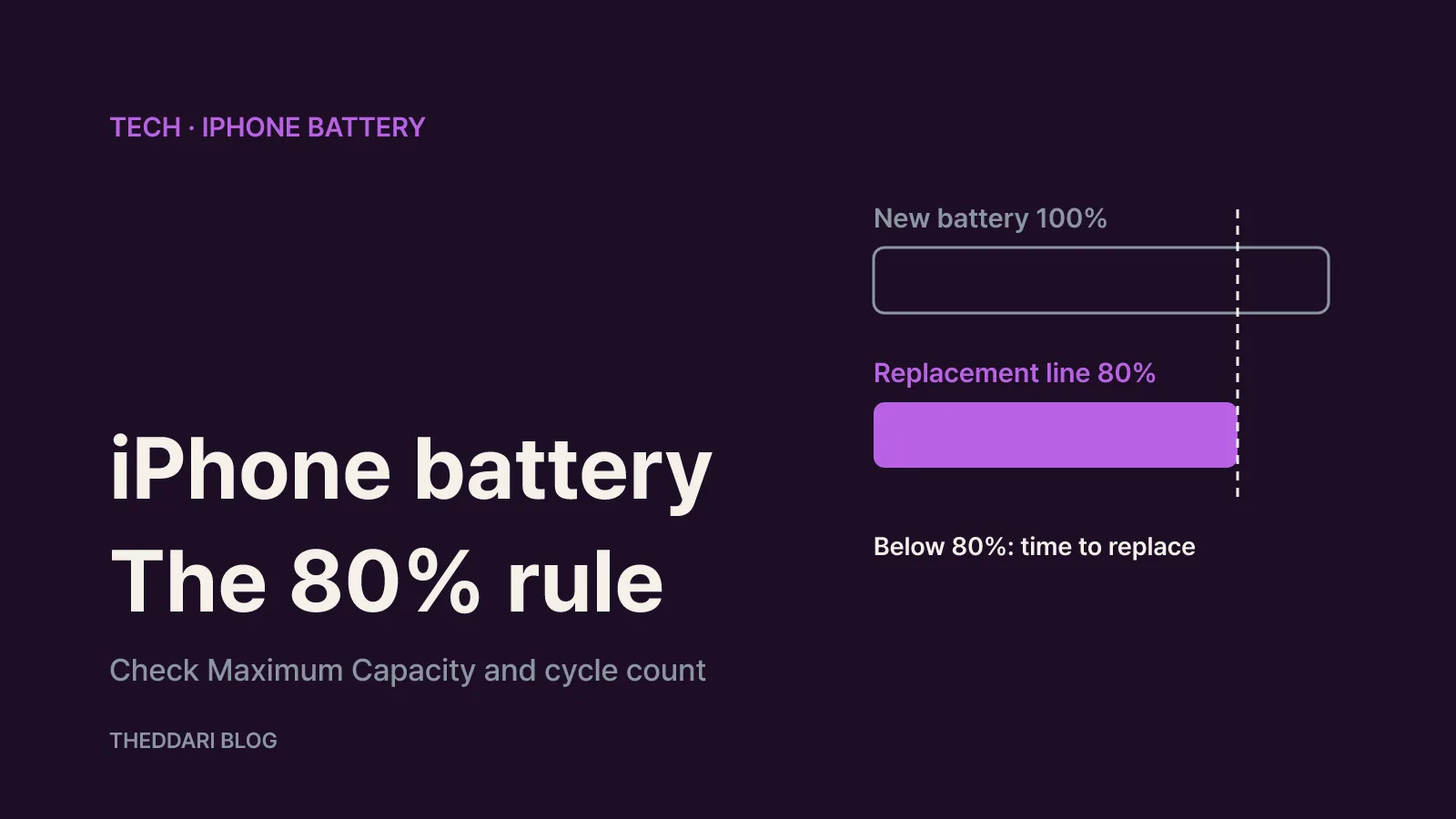
As of October 2026, the clearest number for deciding when to replace an iPhone battery is Maximum Capacity, found under Settings > Battery > Battery Health. Apple says batteries in iPhone 14 models and earlier are designed to retain 80% of their original capacity at 500 complete charge cycles under ideal conditions, while iPhone 15 models and later are designed to retain 80% at 1,000 cycles (Apple Support). So when your phone reaches 80%, it has hit the end of its design target. If you have AppleCare+, Apple replaces the battery at no extra charge once capacity drops below 80%. Without it, a battery that has simply worn down from normal use is not covered by the warranty, and replacement is a paid service (Apple battery service).
This guide walks through where to find the number on each model, what 80% and the cycle count actually measure, which on-screen messages and symptoms deserve attention even above 80%, how coverage works, and which charging settings help the battery you have last longer. Everything here is drawn from Apple's own support documents and battery pages. Some links point to Apple's South Korea pages, which publish the same battery figures; warranty length and service pricing differ by country, so check the version of each page for your own region.
How to check iPhone battery health and cycle count
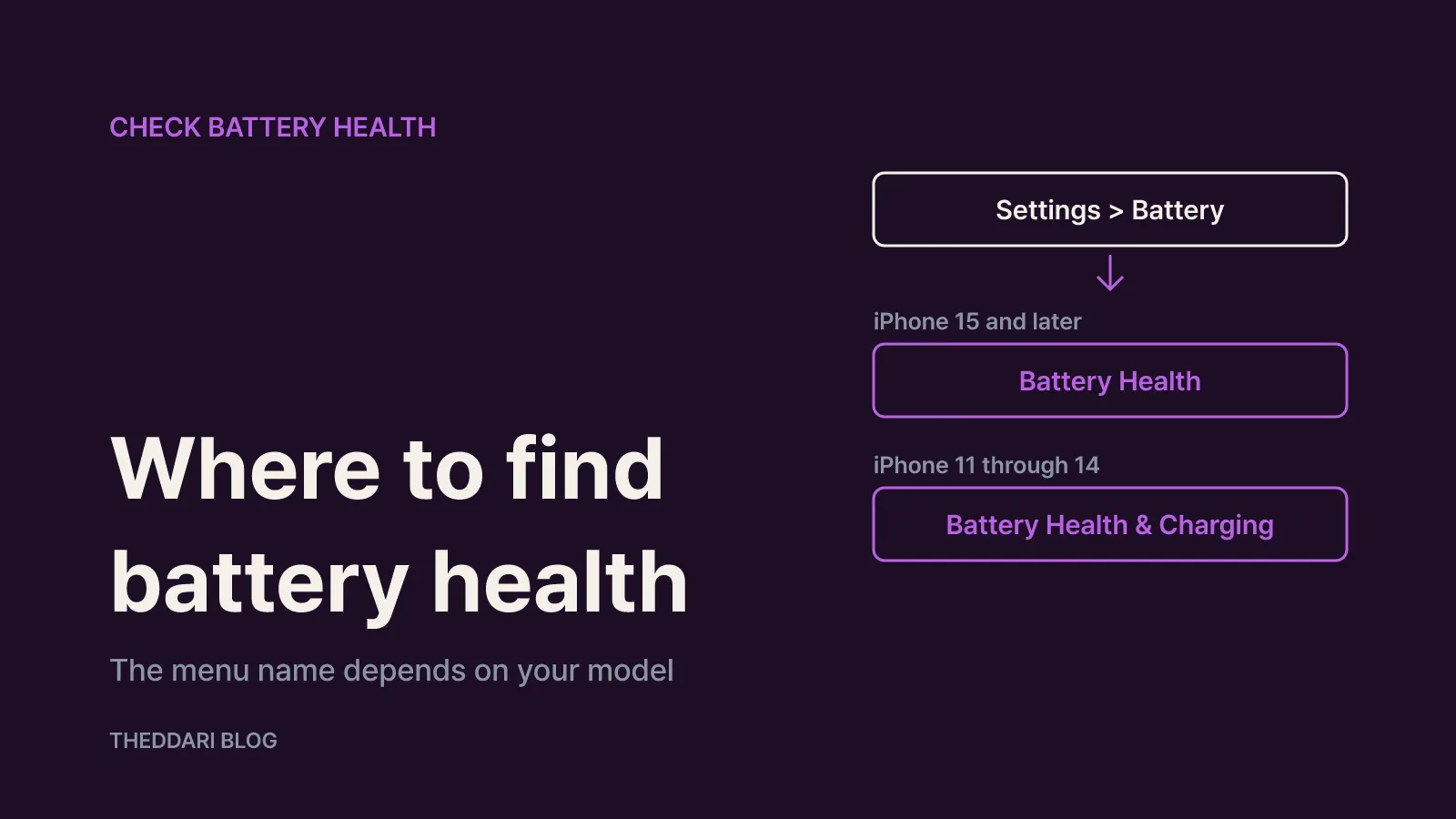
The menu name depends on your model.
iPhone 15 and later (iOS 17.4 or later)
- Open Settings and tap Battery.
- Tap Battery Health.
This screen shows Maximum Capacity along with whether a replacement is recommended, the cycle count, the battery's manufacture date, and its first use date (Apple Support). Because the cycle count is displayed directly, you don't need a third-party app or a Mac utility to estimate it. If you are buying a used iPhone, the manufacture and first use dates are a quick way to check the seller's story.
iPhone 11 through iPhone 14
- Open Settings and tap Battery.
- Tap Battery Health & Charging.
On these models the same screen shows Maximum Capacity, Peak Performance Capability, and the Optimized Battery Charging switch.
A brand-new phone may show slightly less than 100%. Apple explains that capacity can read a little below 100% depending on the time between when the iPhone was manufactured and when it was activated (Apple Support). On its own, that is not a sign of a defect.
What 80% and 500 vs 1,000 charge cycles mean
Maximum Capacity compares how much charge your battery can hold now with how much it held when new. As lithium-ion batteries chemically age, they hold less charge, so you get less use between charges (Apple Support).
A charge cycle is not the number of times you plug in. You complete one cycle when you have used power equal to 100% of the battery's capacity. Use 60% today, recharge, use 40% tomorrow, and that adds up to one cycle. Because capacity shrinks over time, Apple defines a complete charge cycle as 80% to 100% of original capacity.
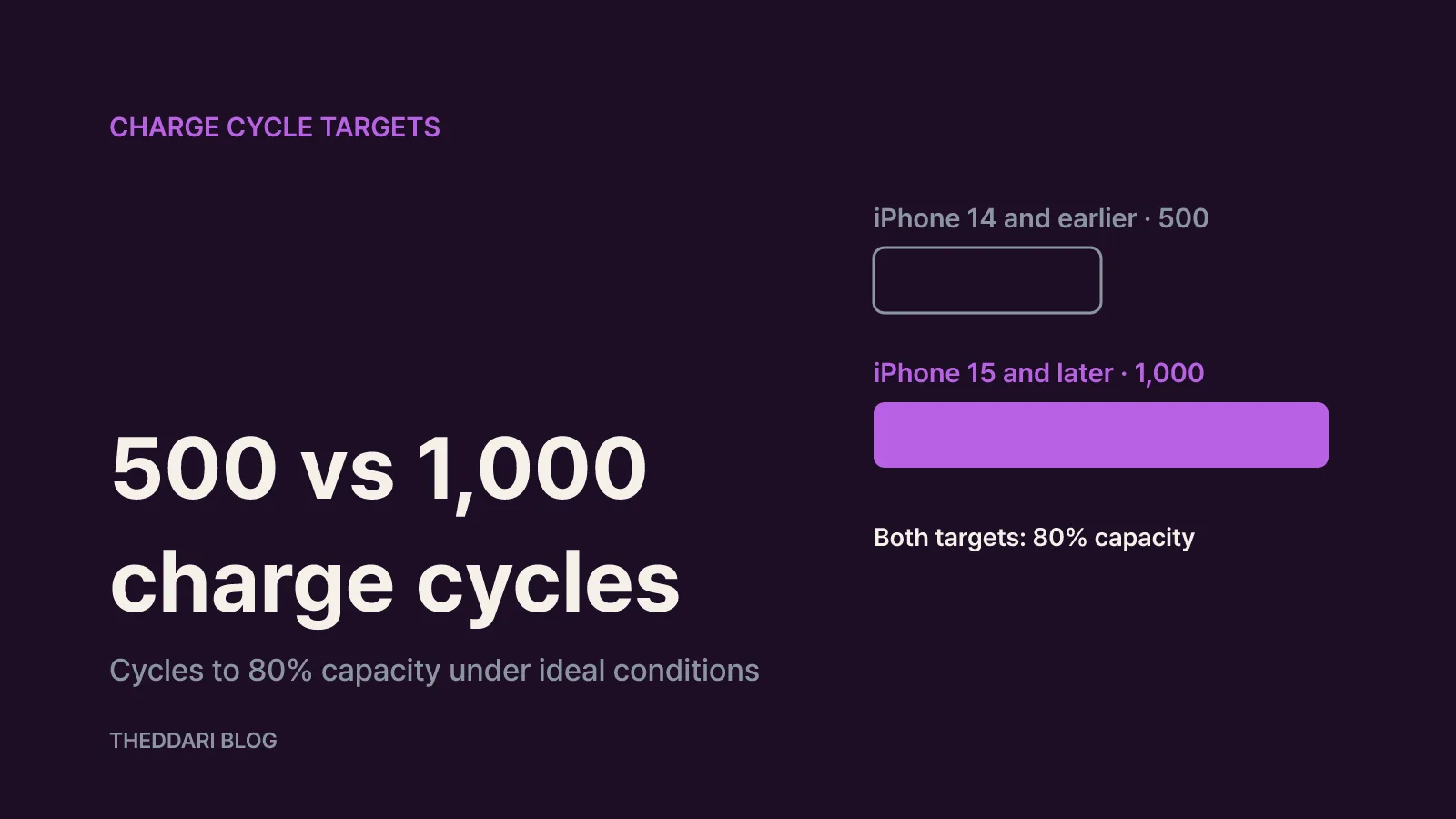
The design targets differ by generation:
- iPhone 14 models and earlier: 80% of original capacity at 500 complete cycles under ideal conditions
- iPhone 15 models and later: 80% of original capacity at 1,000 complete cycles under ideal conditions
Apple's battery service page lists the same figures (Batteries – Service and Recycling). Note the phrase "ideal conditions." Apple adds that the exact capacity depends on how the device is used and charged. Passing 500 cycles does not mean an immediate replacement, and a phone with a low cycle count can still lose capacity faster if it is often charged in hot places. Judge by Maximum Capacity and real-world battery life together, not cycles alone.
Warning signs to act on even above 80%
An aging battery also loses its ability to deliver peak power instantly. When that happens, iOS manages performance to prevent unexpected shutdowns (Apple Support). Apple lists the effects you may notice:
- Apps take longer to launch
- Lower frame rates while scrolling, or gradually reduced frame rates in some apps
- A dimmer backlight or lower speaker volume
- In the most extreme cases, the camera flash shown as disabled
- Apps that refresh in the background needing to reload when opened
Call quality, captured photo and video quality, GPS and location accuracy, sensors, and Apple Pay are generally not affected. Performance management caused by low charge or cold temperatures is temporary, but it can persist when the battery is heavily aged.
Two Battery Health messages are worth taking seriously:
- "Your battery's health is significantly degraded." Apple says this is not a safety issue and the battery can still be used, but battery and performance problems may become more noticeable. Apple recommends service for a new battery.
- "Unable to verify this iPhone has a genuine Apple battery." Shown on iPhone XS, XS Max, XR and later, it means the health information on screen may not be accurate. It often turns up on used phones that went through an unofficial repair, so look for it before you buy.
On older models such as iPhone 8 through XR, you can turn performance management off, but once disabled you can't turn it back on manually; it re-enables itself after another unexpected shutdown. If it keeps coming back, a new battery is the real fix.
Warranty, AppleCare+, and checking the replacement cost
What you pay depends on your coverage (Apple battery service):
- Apple Limited Warranty: A defective battery is covered, but accidental damage and batteries that wear down from normal use are not. Coverage length varies by country. On Apple's South Korea page, for example, iPhone manufacturing defects are covered for two years while the in-box battery and Apple-branded accessories are covered for one year; the US page for battery care refers to a one-year warranty (Apple Support).
- AppleCare+: Apple replaces the battery at no extra charge if capacity drops below 80%. What matters is whether your plan is still active when the battery crosses that line.
- Out of warranty: Apple offers paid battery service. On the service page, choose your device type and model to see an estimate. The final fee is set after inspection, estimates are subject to VAT where applicable, a delivery fee may apply if the phone is shipped, and Apple Authorized Service Providers can set their own prices.
Model prices load live on Apple's page and vary by region, so this guide does not quote them. Check the estimate for your exact model right before you book, and confirm your coverage with your serial number at Apple's coverage checker.
After a repair, Apple guarantees the service and replacement parts for 90 days or the remainder of your Apple warranty, whichever is longer. Parts may be new or previously used genuine Apple parts that passed functional testing. Apple also says built-in lithium-ion polymer batteries should be serviced only by Apple or an authorized provider.
Charging settings that slow battery wear
If you want to push back the replacement date, start with charging settings (Apple Support).
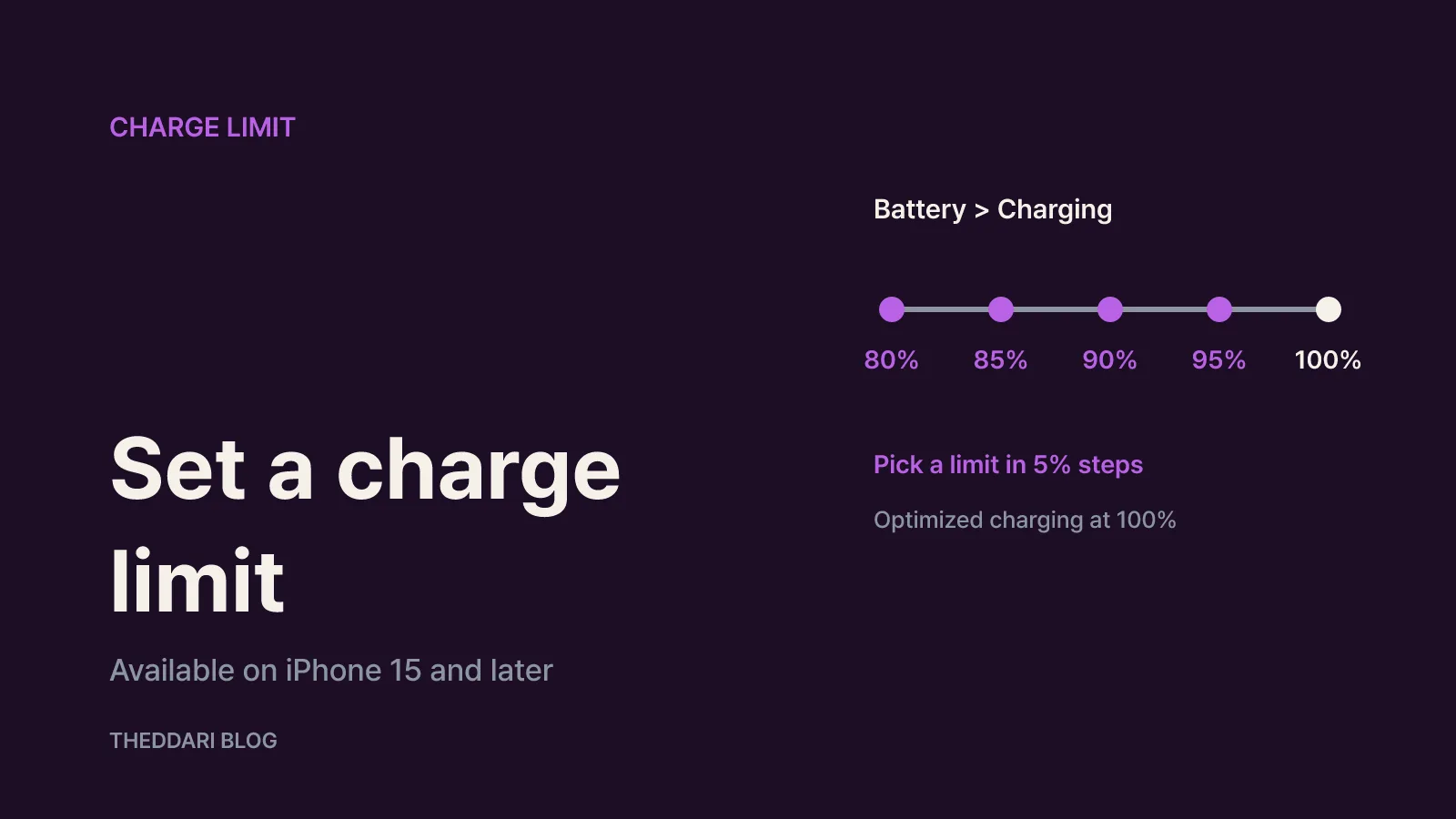
Charge Limit (iPhone 15 and later). In Settings > Battery > Charging, choose a limit of 80%, 85%, 90%, 95%, or 100%. iPhone charges to within a few points of the limit, then stops; if the level drops more than 5% while plugged in, it tops up again. Even with a lower limit, iPhone occasionally charges to 100% to keep its charge estimate accurate. iOS may suggest a limit, such as 95%, based on your habits.
Optimized Battery Charging. On iPhone 15 and later it is available when the limit is 100%; on iPhone 14 and earlier, toggle it under Battery Health & Charging. It is on by default and delays charging past 80% when iPhone predicts a long connection, finishing just before you usually unplug. It needs at least 14 days to learn your routine and at least 9 charges of 5 hours or more in a location. Touch and hold the Lock Screen notification and tap Charge Now if you need a full battery sooner.
Temperature. iPhone works best at 62° to 72° F (16° to 22° C). Using or charging it above 95° F (35° C) can permanently reduce battery lifespan, and software may limit charging above 80% when temperatures are too high (Apple Support). Cold-weather drain is temporary. Avoid charging on a sun-baked car mount, and store an unused phone at about half charge.
Overnight charging is fine: iPhone stops when full and resumes if the level drops below 95%.
Quick checklist before you replace the battery
- Check Maximum Capacity. Below 80% means the battery is past Apple's design target.
- Check AppleCare+ dates. If the plan is active and capacity is below 80%, request a replacement at no extra charge. If you are just above 80% near expiry, recheck before the plan ends.
- Look for warnings. "Significantly degraded" justifies service regardless of the percentage.
- Note symptoms. Repeated shutdowns, slow app launches, or a dim screen suggest performance management is active.
- Get an estimate and book. Use Apple's service page for your model, then book a Genius Bar or authorized provider. Track repairs in My Support or the Apple Support app.
Back up to iCloud or a computer before handing the phone over. A battery is a consumable part, so if Maximum Capacity has fallen below the line, a replacement is worth pricing out before you buy a new iPhone.