
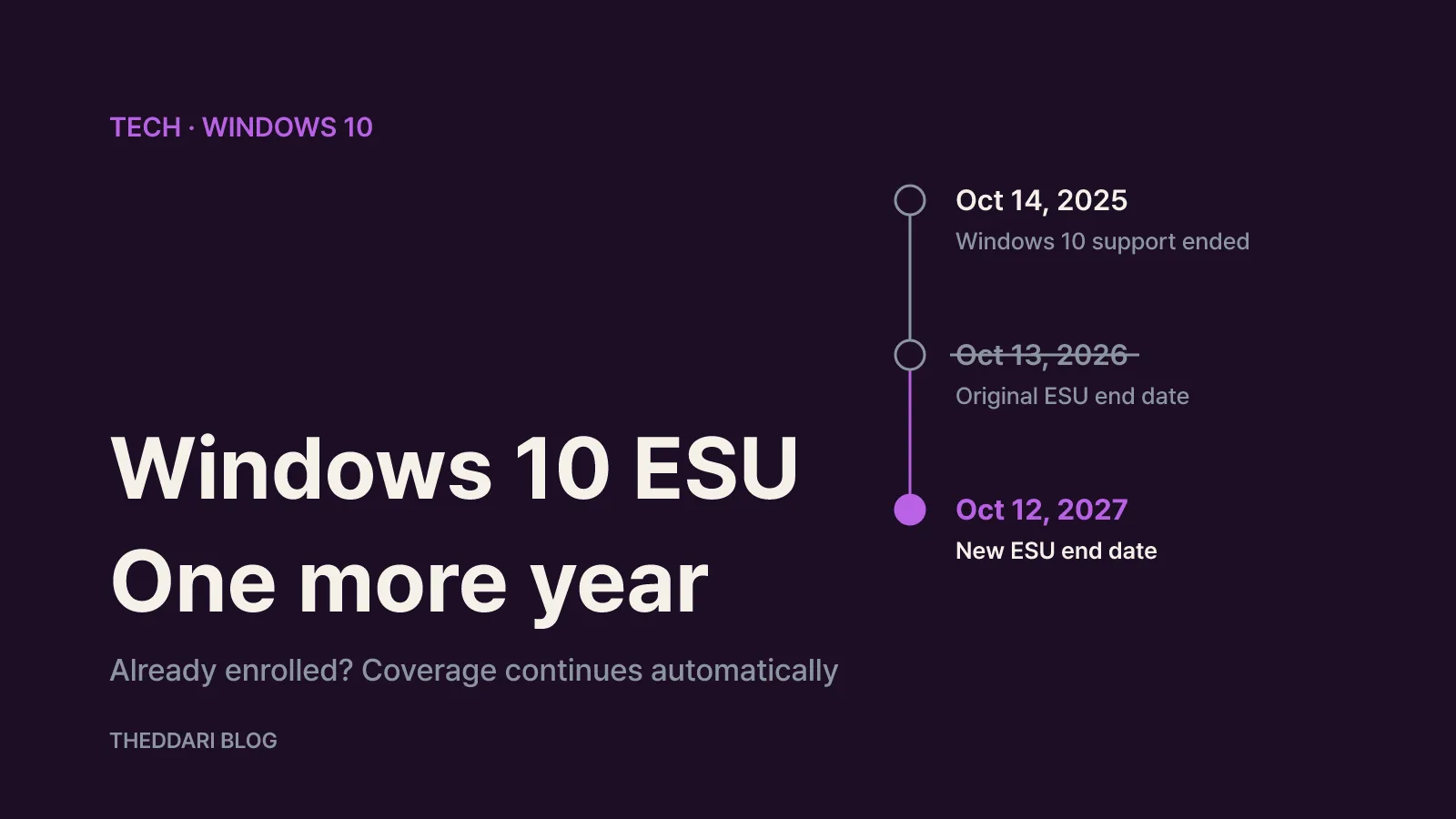
As of October 2026, the consumer Extended Security Updates (ESU) program for Windows 10 runs until October 12, 2027, a full year later than the original October 13, 2026 end date. If your PC is already enrolled, you don't need to do anything: Microsoft says coverage continues automatically. If you haven't enrolled, you can still sign up at any point before the program closes, choosing between syncing your PC settings (no extra cost), redeeming 1,000 Microsoft Rewards points, or a one-time $30 purchase plus tax. Below is what changed, who qualifies, how to enroll, and what ESU does not cover.
What changed: the end date moved from October 2026 to October 2027
Windows 10 itself reached end of support on October 14, 2025. According to Microsoft Support, that date ended technical support, software updates, and security fixes. Your PC keeps booting and working, but newly discovered vulnerabilities stay unpatched, which raises the risk from malware.
Consumer ESU was created to bridge that gap. It was originally designed as a one-year extension ending October 13, 2026. In late June 2026, Microsoft quietly updated its ESU documentation and added an editor's note to a Windows Experience Blog post, moving the end date to October 12, 2027. There was no formal announcement, as Help Net Security reported, so plenty of articles and forum posts still cite the old 2026 deadline.
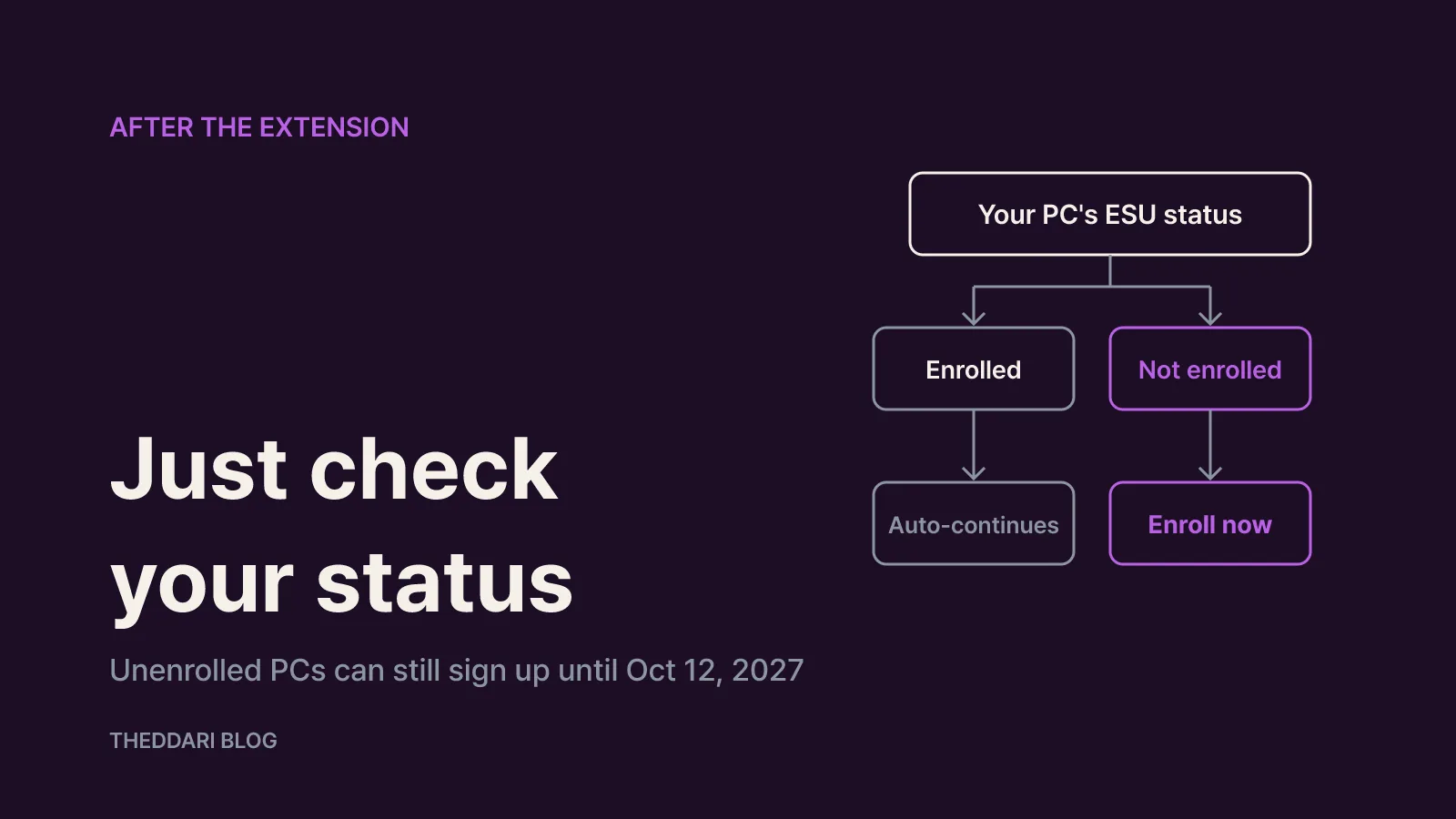
The official Windows 10 ESU page now reads: "You can enroll in ESU any time until the program ends on October 12, 2027. If you're already enrolled, your coverage will automatically continue through that date." In practice:
- Already enrolled: no action needed; updates continue through October 12, 2027.
- Not yet enrolled: once you enroll, you receive every critical and important security update released since October 14, 2025.
- Enrollment window: open until the program ends, but your PC is exposed until you actually enroll, so waiting gains you nothing.
Eligibility: four requirements to check first
Microsoft lists four prerequisites for consumer ESU. If any one is missing, the enrollment link simply won't appear in Windows Update.
- Windows 10, version 22H2 in the Home, Professional, Pro Education, or Workstations edition.
- The latest Windows updates installed. Clear any pending updates and restart.
- The Windows 10 ESU Licensing Preparation Package, KB5126256. Look for this KB number in your update history.
- An administrator Microsoft account that is not a child account. The ESU license is tied to the Microsoft account used to enroll, so if you normally sign in with a local account, you'll be prompted to sign in with a Microsoft account during enrollment.
Consumer ESU is not meant for managed business devices. Enrollment isn't offered on PCs in kiosk mode, PCs joined to an Active Directory domain or Microsoft Entra, or PCs enrolled in a mobile device management (MDM) solution. Devices that are merely Microsoft Entra registered can still use consumer ESU. If an enrolled consumer device later joins one of those commercial scenarios, its consumer enrollment is suspended until it stops being used as a commercial device. IT administrators should follow Microsoft's separate commercial ESU guidance instead.
Three ways to enroll: settings sync, 1,000 Rewards points, or $30
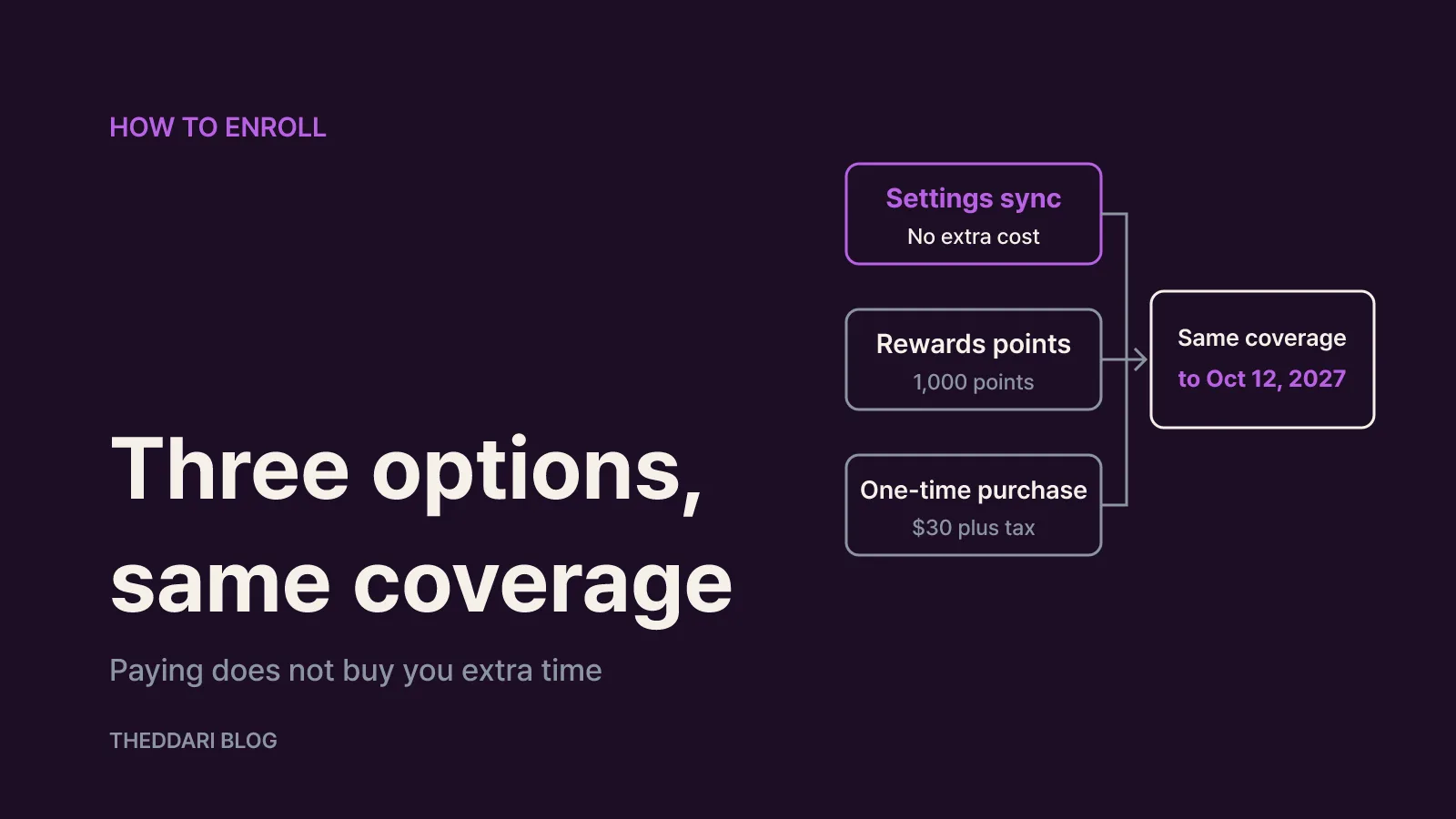
Go to Settings > Update & Security > Windows Update. On an eligible PC, you'll see a link to enroll; select Enroll now and choose one of three options:
- Sync your PC settings (no additional cost): if Windows Backup is syncing your PC settings to your Microsoft account, enrollment is free. If you already back up settings, you'll go straight to a prompt to enroll the device.
- Redeem 1,000 Microsoft Rewards points: Rewards orders are final and can't be returned or exchanged.
- One-time purchase of $30 USD or the local-currency equivalent, plus applicable tax. Refunds follow Microsoft's digital purchase policy for your country.
All three options give you the same coverage, through October 12, 2027. Paying does not buy you extra time. If you already use a Microsoft account and don't mind syncing settings, the free route is the obvious choice. If you'd rather not sync settings to the cloud, points or the one-time purchase are the alternatives.
Microsoft notes that enrollment options and timing can vary by region, for example in the European Economic Area (EEA), and the regional version of the ESU page shows local details. Check the price displayed at enrollment for your exact local amount.
Checking your status and covering multiple PCs or users
To confirm enrollment, return to Settings > Update & Security > Windows Update, where your ESU status is shown. If you paid, the purchase also appears in your Microsoft account Order History.
One ESU license covers up to 10 devices. On each additional PC, open the same Windows Update page and select Enroll now. If you're signed in with the same Microsoft account used for the first PC, choose Add device; otherwise you'll be asked to sign in with that account. Each extra PC must meet the same four requirements.
For a shared family PC, one user enrolling protects every other user on that machine, so there's no need for each person to enroll. On a child's PC, the child account lacks permission to enroll. A parent needs to be added to that PC as an administrator user, switch to their own account, and enroll from there.
What ESU doesn't cover, plus Office and Microsoft 365 dates
ESU delivers only critical and important security updates, as rated by the Microsoft Security Response Center (MSRC). It includes no new features, no non-security fixes, and no technical support. Think of it as keeping the locks working, not renovating the house.
Your Office apps follow their own schedule. Microsoft Support says Microsoft 365 Apps on Windows 10 lost support on October 14, 2025, but continue to receive security updates until October 10, 2028. Perpetual Office versions differ: Office 2016 and Office 2019 reached end of support on October 14, 2025 on every operating system, and Office 2021 and Office LTSC 2021 support ended in October 2026. Enrolling Windows 10 in ESU does not extend security updates for those Office versions. Office 2021 and 2024 licenses can be moved to a new Windows 11 device.
Planning your move to Windows 11 before October 2027
ESU buys time; it isn't a destination. Enrolling doesn't block an upgrade, so plan to move to Windows 11 before consumer ESU ends on October 12, 2027.
The Windows 11 minimum requirements are:
- A compatible 64-bit processor, 1 GHz or faster with 2 or more cores
- 4 GB of RAM and 64 GB or more of storage
- UEFI firmware with Secure Boot capability, and TPM 2.0
- DirectX 12 compatible graphics with a WDDM 2.0 driver
- A 720p display larger than 9 inches diagonally
On older machines, the CPU compatibility list and TPM 2.0 are the usual blockers. Run Microsoft's PC Health Check app to find out. Per Microsoft Support, the upgrade is free for PCs running Windows 10, version 22H2 that meet the minimum hardware specs; select Check for updates in Windows Update to see whether yours is eligible. Windows 11 Home and Windows 11 Pro for personal use also require an internet connection and a Microsoft account during initial setup.
A quick action list:
- Confirm you're on Windows 10 version 22H2 with all updates installed.
- Check your ESU status in Windows Update and enroll if needed.
- Run PC Health Check to test Windows 11 compatibility.
- Schedule the upgrade, or budget for a replacement PC before October 12, 2027.
- Check the support dates for the Office version you use.