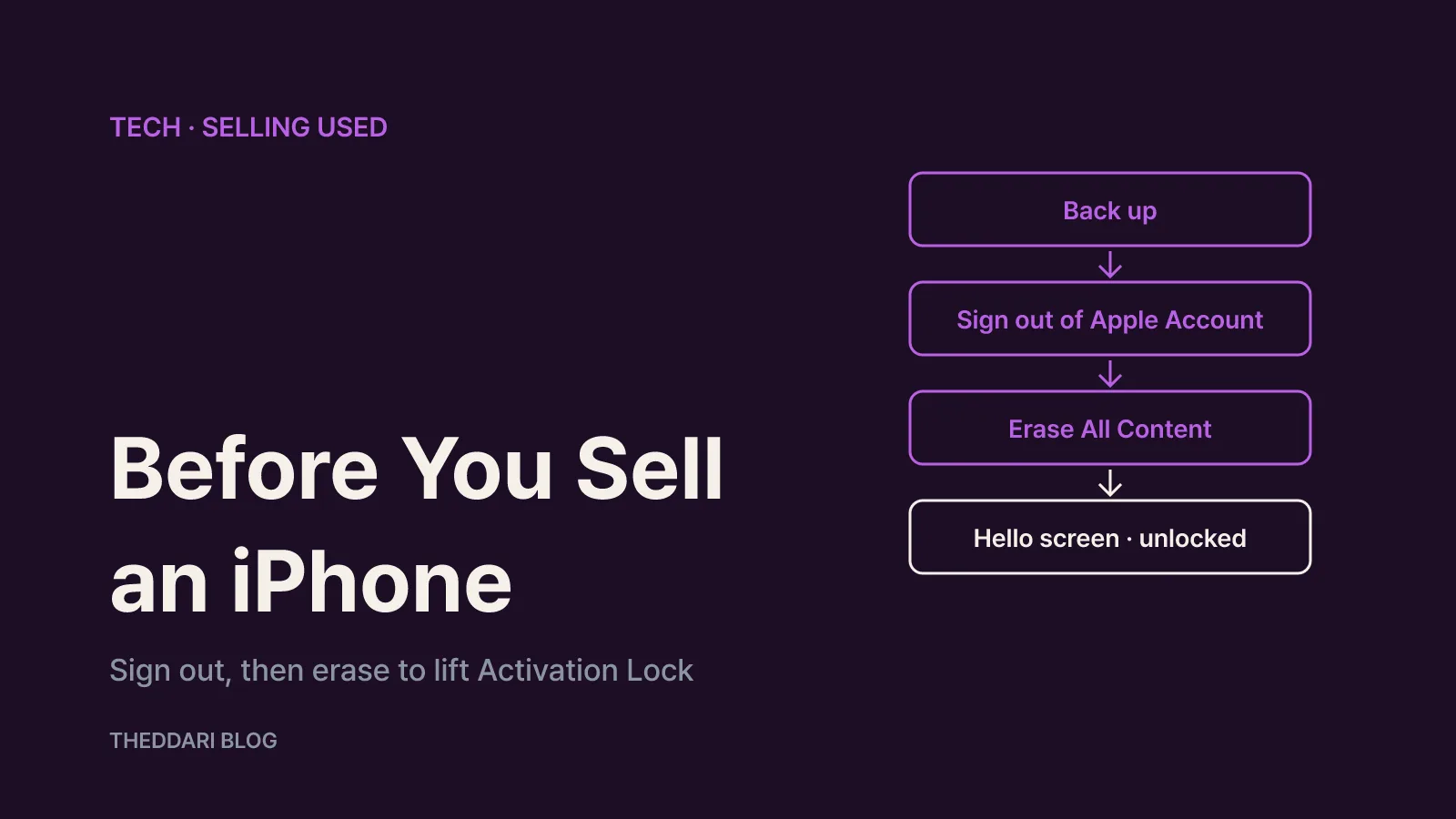
As of October 2026, Apple's own support documents give a clear answer to the question "how do I wipe my iPhone before selling it?": back it up, unpair your Apple Watch, sign out of your Apple Account, then erase all content and settings. According to Apple, erasing the device turns off Find My and Activation Lock, which is what lets the next owner set it up. What you should not do is delete photos and contacts one by one while still signed in to iCloud, because that can remove the originals from iCloud and every other device on your account. Below is Apple's checklist in plain language, plus the fix if you already handed the phone over without signing out, and what a buyer should check.
Why the order matters: Activation Lock and the iCloud deletion trap
Activation Lock is the anti-theft layer built into Find My. As Apple explains, it turns on automatically when you turn on Find My. Apple stores your Apple Account on its activation servers and links it to the device, and from then on your password is required before anyone can turn off Find My, erase the phone, or reactivate and use it. Every time an iPhone is activated or restored, it checks in with Apple to see whether the lock is on.
If you sell a phone that is still linked to your account, the buyer hits a request for your Apple Account during setup and cannot use the device. That usually means an awkward follow-up message after the sale, and a buyer who reasonably suspects something is wrong.
The second trap is manual cleanup. Apple warns that when you are signed in to iCloud, manually deleting contacts, calendars, reminders, documents or photos permanently removes them from iCloud servers and all of your connected devices. Select-all-and-delete in Photos on the old phone can wipe the same library on your new iPhone or iPad. The safe way to remove personal data is to sign out and run a full erase. Erasing the device itself does not delete anything stored in iCloud.
Apple's 10-step checklist, from backup to trusted devices
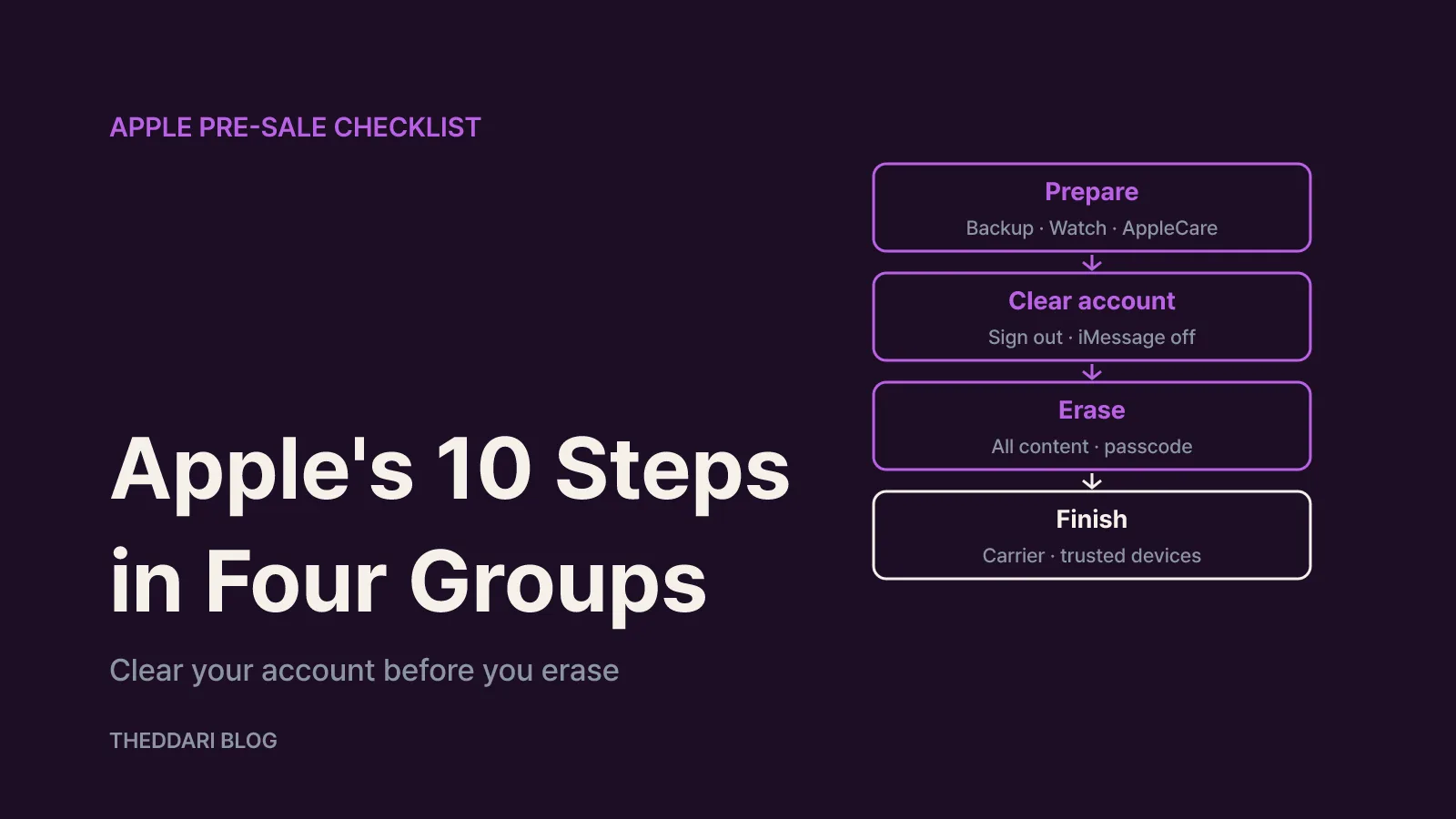
If you still have the phone, Apple groups the job into four parts: create a backup, transfer your data to the new device, check Parts and Service History, and remove your personal information. If the old phone runs iOS 11 or later, Quick Start can move your data automatically. If your phone number is changing, add another trusted phone number to your Apple Account first so you keep receiving two-factor authentication codes.
Removing your personal information takes these 10 steps:
- Back up the iPhone, even if you have already moved to a new phone.
- Unpair your Apple Watch if one is paired.
- If you have an AppleCare plan, cancel it or transfer it to the new owner.
- Sign out of iCloud and the App Store (menus by iOS version are below).
- If you are moving to a non-Apple phone, deregister iMessage.
- Go to Settings > General > Transfer or Reset iPhone > Erase All Content and Settings.
- Enter your device passcode or Restrictions passcode if asked.
- Tap Erase iPhone.
- If the phone does not use a SIM card, your carrier can help transfer service to the new owner.
- Remove the old phone from your list of trusted devices.
The erase removes Apple Pay cards, photos, contacts, music and apps, and turns off iCloud, iMessage, FaceTime and Game Center. If Find My is on, you may be asked for your Apple Account password during the erase, so confirm you know it before you start. Apple also notes you may need that password when trading in at an Apple Store.
Signing out by iOS version, plus eSIM and iMessage
The sign-out path depends on your software version, per Apple's checklist:
- iOS 26 or later: Settings > [your name] > Sign Out, then choose Erase this iPhone or Sign Out But Don't Erase. If asked which account, tap Sign out of iCloud and Store.
- iOS 18 or earlier: Settings > [your name] > Sign Out, enter your Apple Account password, and tap Turn Off.
- iOS 10.2 or earlier: Settings > iCloud > Sign Out, tap Delete from My iPhone, then sign out separately under iTunes & App Store.
On iOS 26, the erase option is offered right in the sign-out flow. For a phone you are selling, that is the more appropriate choice. Sign Out But Don't Erase leaves some data on the device, so if you pick it, finish with Erase All Content and Settings afterward.
If the phone uses an eSIM, the erase screen asks whether to remove the eSIM profile as well. Apple's guidance for a sale is to erase both the device and the eSIM profile. Carrier transfer steps vary, so it is sensible to confirm your line works on the new phone before you wipe the old one.
Switching to Android? Deregister iMessage, or texts from iPhone users may not reach your new phone as RCS or SMS/MMS. Apple's steps: put the SIM back in the iPhone, connect to cellular data, go to Settings > Apps > Messages and turn off iMessage, then Settings > Apps > FaceTime and turn off FaceTime. If you no longer have the iPhone, Apple offers an online deregistration page. Texts arrive right away after that, though some Apple devices can take a few hours to notice you no longer use iMessage.
Already sold it? Remove Activation Lock from iCloud.com
If you forgot to sign out, first ask the new owner to run Erase All Content and Settings. Otherwise, the iCloud User Guide describes a remote fix:
- Go to icloud.com/find and sign in.
- Select the phone in your device list.
- Erase the device. Since it is not lost, do not enter a phone number or message. If it is offline, the erase starts the next time it connects, and you get an email when it finishes.
- Once erased, select Remove This Device. Activation Lock is removed immediately and the phone disappears from Find My.
Skipping the erase behaves differently. If the device is offline, Remove This Device lifts Activation Lock immediately and drops it from Find My after 30 days, but if it comes online after those 30 days while still signed in to your account, it reappears and the lock is re-enabled. If the device is online, it cannot be removed; instead you can mark it Ready for Repair or Trade In for 30 days. For a phone that now belongs to someone else, erase-then-remove is the reliable route.
Apple also recommends removing the phone from your trusted devices, changing your Apple Account password and turning on two-factor authentication. A new password will not wipe data left on the phone, but it stops the new owner from deleting your iCloud data. If you used Apple Pay, remove your cards and passes in Wallet.
Apple Store trade-ins, repairs and Ready for Repair or Trade In
For an Apple trade-in, open Parts and Service History in Settings first. If any part shows Finish Repair, that repair must be completed before the phone can be traded in. Activation Lock also protects individual parts: Apple says a used part taken from another device that was locked when the part was removed is not eligible for service under the Apple Limited Warranty or AppleCare.
If Stolen Device Protection is on, changing your password in the store may trigger a one-hour security delay, so make sure you know your password, or reset it, before you go.
On iOS 27 or later, Ready for Repair or Trade In keeps Find My on for eligible repairs and trade-ins. Per Apple, open the Find My app, select the device, tap More, tap Repair or Trade In, then Enable and authenticate with your password. It turns off automatically when the technician marks the job complete, and you can switch it off yourself if you cancel before sending the device. Apple or the Authorized Service Provider tells you whether it applies. It is not meant for private sales, where the 10-step erase is still the answer.
Buying used: how to check for Activation Lock
If you buy from anyone other than Apple or an Apple Authorized Reseller, Apple suggests these checks before you take the phone:
- On iOS 15 or later, a locked device shows an iPhone Locked to Owner screen when turned on or woken. Walk away.
- If the passcode Lock Screen or Home Screen appears, it has not been erased. Ask the seller to erase it.
- If setup asks for the previous owner's Apple Account, it is still linked. Ask the seller to enter their password, or to remove it from their account on the web.
The phone is ready when you see the Hello screen. Checking this in person, with the seller present, avoids a locked phone and an unanswered message later.
Final pre-sale checklist
- Recent backup made, and photos, messages and authenticator apps working on the new phone?
- Apple Watch unpaired and AppleCare cancelled or transferred?
- Signed out and erased, rather than deleting items one by one?
- eSIM profile erased along with the device?
- iMessage and FaceTime turned off if you are moving to Android?
- Phone boots to Hello and is gone from your trusted devices?
Menu names can shift with iOS updates, so glance at the publication date on Apple's support page right before you start.