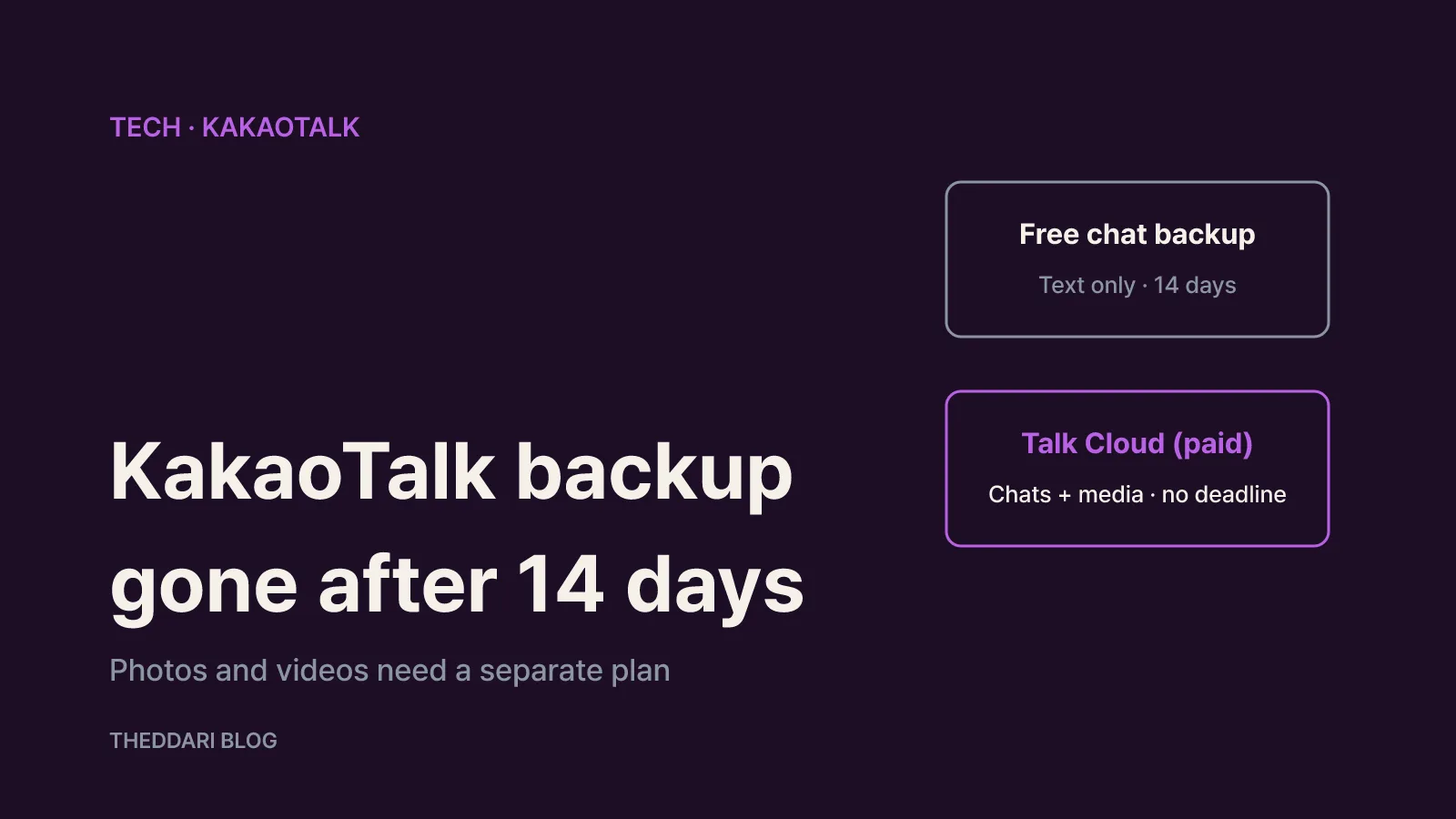
As of November 2026, Kakao's help center states that KakaoTalk's free chat backup stores text conversations only, and you can restore it only within 14 days of the moment the backup completes. After that, the backup is deleted automatically. If you also want photos, videos and attachments on your new phone, you need either Talk Cloud, Kakao's paid subscription backup, or to save the important files to your device yourself before you switch. The safest timing is simple: back up on the old phone right before you set up the new one, and restore the same day.
This guide is built on two Kakao help center articles, one on restoring chats after changing phones or numbers and one on the restore deadline, rearranged into the order you actually follow on switch day. Kakao's help pages are written in Korean, so the menu names below are translated; the English labels in your app may differ slightly depending on your language setting and app version. Updating KakaoTalk to the latest version before you start is a good idea.
Free chat backup vs. Talk Cloud: what each one keeps
Kakao describes two ways to back up conversations. The first is a free, text-only backup (labelled as a temporary chat backup in the Korean menu). The second is Talk Cloud, a subscription that backs up both conversations and media. They sound similar, but they differ in what they store and how long the backup lasts.
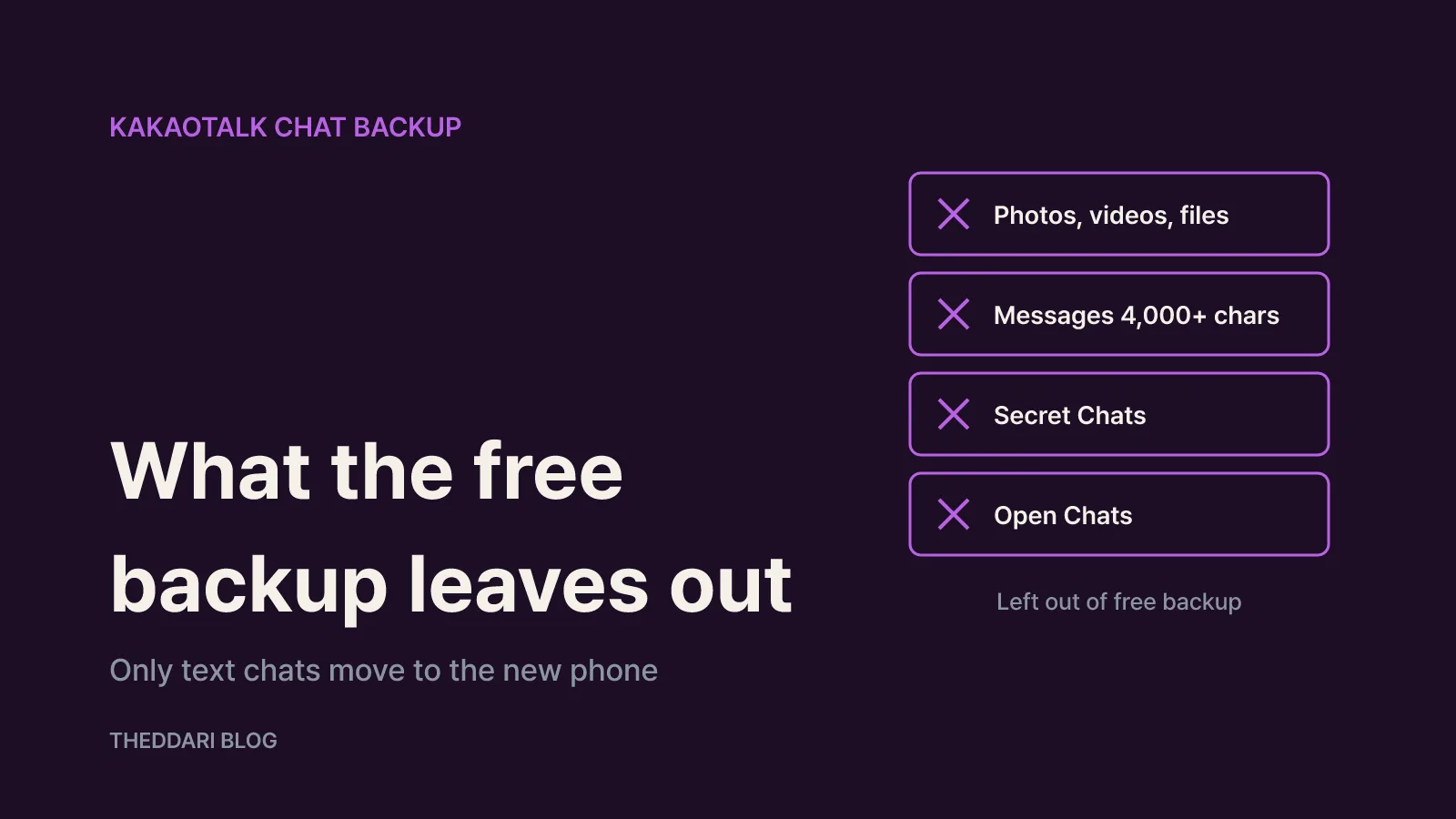
The free backup leaves out the following, according to Kakao:
- Photos, videos and other multimedia, plus file attachments
- Long messages of 4,000 characters or more
- Secret Chats
- Open Chats
In practice, the text of your regular one-to-one and group chats comes back, but the pictures and documents shared inside those rooms do not appear on the new phone. Open Chat history is not restored either, so if an Open Chat room holds notices or links you rely on, copy them somewhere else first.
The deadline is the other big difference. Kakao's restore deadline article says a free backup can be restored only within 14 days of completion and is deleted automatically after that, for privacy reasons. For backups made through Talk Cloud, Kakao says there is no separate restore deadline. Talk Cloud still excludes Open Chats and Secret Chats.
So if continuing your text conversations is enough, the free backup does the job. If you want the photos and videos inside your chat rooms to carry over as they are, you need Talk Cloud. Talk Cloud is a recurring paid subscription, so check the current storage tiers, prices and cancellation terms on Kakao's subscription page before you sign up.
How to run the free backup before you switch
The free backup is done on your old phone. The path Kakao gives is:
- Open KakaoTalk > More (…) > Settings (gear icon) > Backup, then choose the temporary chat backup option.
- Set a password that will encrypt the backup data.
- Keep KakaoTalk open and on screen until the backup finishes. Do not close it or switch apps.
- When it completes, note the warnings shown and the restore window.
The password is where most people get stuck. Kakao states that a lost backup password cannot be recovered. It is separate from your Kakao Account password, so write it down right after you create it, on paper or in a note on another device. Large chat histories take longer to back up, and on a mobile data connection you may be charged for data depending on your plan, so connect to Wi-Fi and keep the phone plugged in.
Timing matters too. Because the 14 days start when the backup completes, backing up early while a new phone is still being shipped eats into your restore window. Messages sent after the backup are not included either. Backing up on the old phone the moment the new one is in your hands, then installing KakaoTalk on the new phone straight away, keeps the gap as small as possible. You can recheck how long your backup remains valid from the same Settings > Backup screen.
Restoring on the new phone, and why restores fail
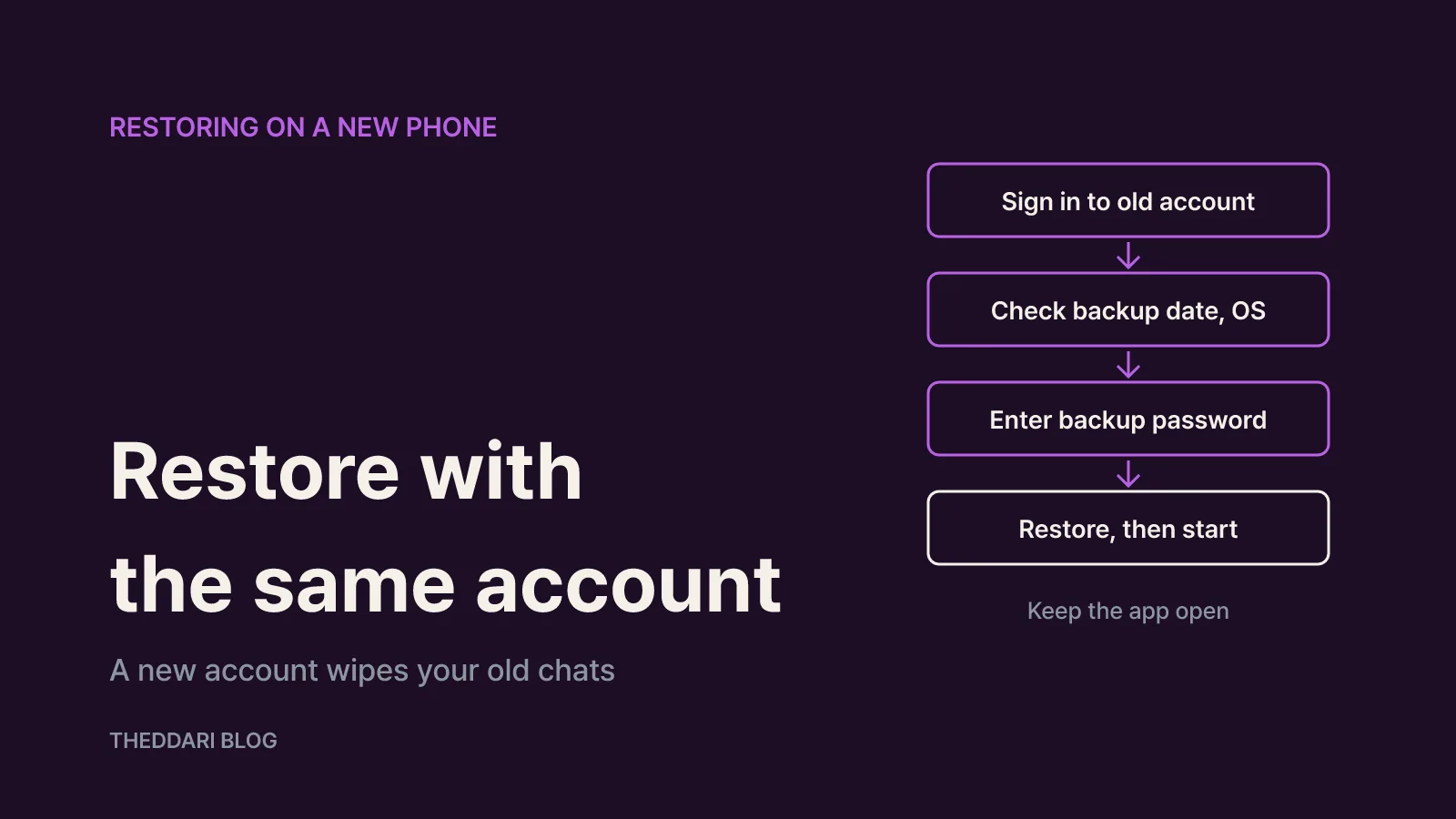
On the new phone, the restore happens during the sign-in process right after installation:
- Install KakaoTalk, sign in with the Kakao Account you used before, and verify your phone number.
- If a backup exists, a chat restore screen appears after you enter your profile details.
- Check the backup date and OS shown, then tap Restore.
- Enter the backup password you created.
- Stay in the app until the restore finishes.
- Tap the button to start using KakaoTalk.
Moving between an iPhone and an Android phone follows the same flow. Kakao announced in 2016 that backups can be restored on a different OS, covering iPhone, Android and Windows PC, and today's restore screen still shows which OS the backup came from. As long as you use the same Kakao Account and know the backup password, your text chats carry over across platforms.
The common reasons a restore fails are:
- Creating a new Kakao Account at the sign-in screen instead of signing in to the old one. Kakao says this resets everything and the chats cannot be restored.
- More than 14 days have passed since the backup completed, so the data has been deleted.
- The backup password is forgotten. There is no recovery option.
- You deleted your KakaoTalk or Kakao Account. Restoring is no longer possible.
Deleting the account is an easy mistake if you assume you will simply sign up again on the new phone, but it removes any route back to your old chats. Do not delete the account on the old phone. Confirm the restore worked on the new phone first, then remove the app or reset the old device.
Keeping photos and videos
Since the free backup does not carry media, there are two ways to protect photos and videos.
The first is Talk Cloud. After subscribing, go to KakaoTalk > More (…) > Talk Cloud, start the service and enter your My password. Then choose back up past data and select both contacts and media. If you skip that step, only data from the moment you started is backed up, and conversations from before the subscription will not be restorable. If you missed it, you can run it later from Talk Cloud > Menu (≡) > Settings > back up past data. Messages you removed with delete on this device before subscribing will not come back.
On the new phone, sign in with the same Kakao Account, verify your number and enter your My password on the restore screen. If you skipped the restore during sign-in, you can retry from Talk Cloud > Menu (≡) > Settings > restore conversations.
The second option is to save only what matters to your device, without subscribing. For family photos or important documents, save them from the chat room into your phone's gallery or files app, then move them with your photo cloud or the manufacturer's phone transfer tool. If the volume is small, this costs nothing.
If the old phone is unusable, or only your number changes
If your old phone is lost or broken and you could not back up, Kakao suggests backing up from a KakaoTalk PC version or tablet you were signed in to, then restoring on the new phone. Only the conversations still present on that PC or tablet are restored, so rooms you never opened there or older history may be missing. If you use KakaoTalk on a computer, run the backup there before signing it out.
If you keep the same phone and only change your number, you do not need to reinstall. Go to More (…) > Settings > the Manage button next to your profile > Phone number > Change phone number. Kakao warns that normal service is not guaranteed if the verified number differs from your actual one, so update it soon after the new number is active.
Switch-day checklist
- Connect both phones to Wi-Fi and chargers.
- Confirm your Kakao Account email or phone number and its password.
- Save must-keep photos and files to the device, or, as a Talk Cloud user, confirm the past-data backup is complete.
- Run a final free backup from Settings > Backup and write down the backup password.
- Install KakaoTalk on the new phone, sign in to the existing account, check the backup date and OS, and restore.
- Open a few key chat rooms to confirm recent messages arrived.
- Reset the old phone only after the restore checks out, and never delete your account.
Following this order avoids the two most common ways people lose their chats: letting the 14-day window run out and starting over with a new account.