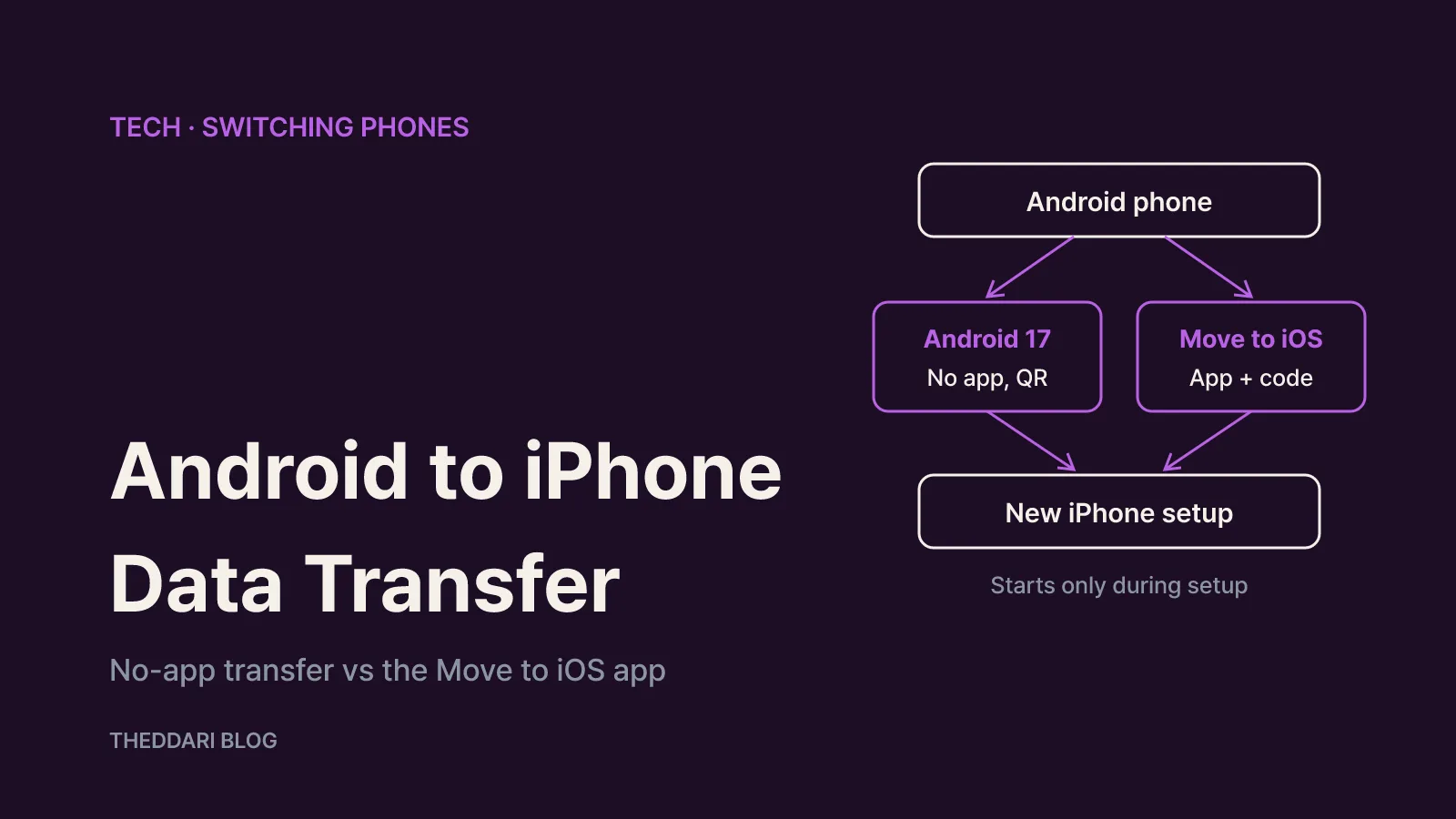
As of November 2026, there are two official ways to move your data from an Android phone to a new iPhone. If your Android phone runs a compatible version of Android 17 and the manufacturer supports it, you can transfer without any app by scanning a QR code from the iPhone setup screen. Otherwise, you install Apple's Move to iOS app from Google Play. Either way, the transfer can only start while the iPhone is being set up for the first time, so if you have already reached the Home Screen you will need to erase the iPhone and start over, or copy things across manually. This guide follows Apple's support article Move from Android to iPhone or iPad, published October 28, 2026.
Which transfer method fits your phone?
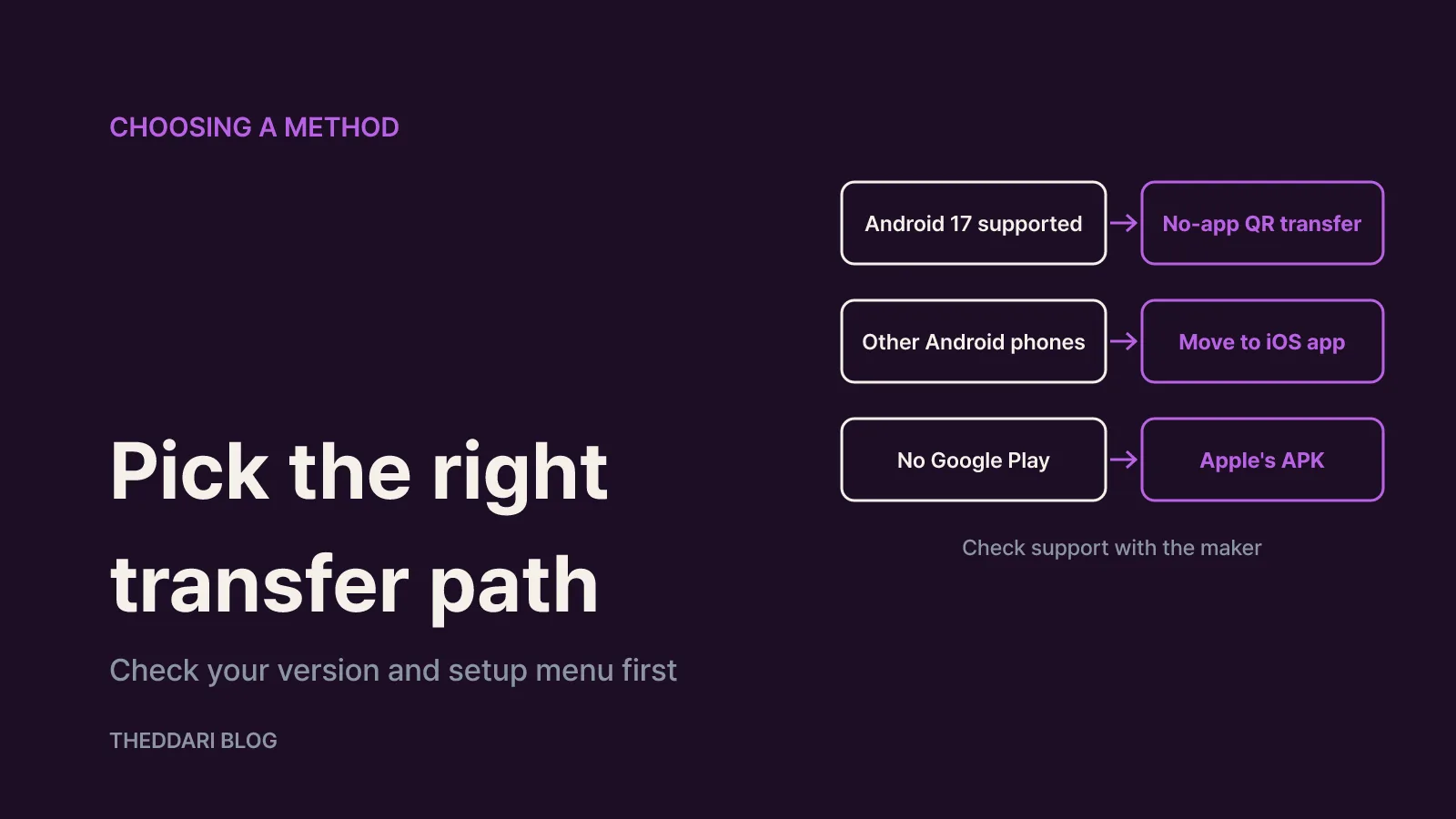
Start by checking the Android version in your phone's settings. According to Apple, a supported Android device running a compatible version of Android 17 can transfer to iOS or iPadOS without the Move to iOS app. That does not mean every Android 17 phone qualifies: Apple tells you to check with your device manufacturer about whether your phone supports eSIM and data transfer without an app. On the iPhone side, Apple's screenshot caption notes that compatible devices with iOS 26.5 can receive a transfer without the app.
A simple decision path looks like this:
- Open your Android settings and find the Android version under the software information section.
- If it is Android 17 or later and the iPhone setup screen offers Transfer without App, use the no-app method.
- If that option is missing or the QR connection fails, choose Transfer with App and use Move to iOS.
- If your phone cannot use Google Play, download the installer directly from Apple.
Apple's page on downloading Move to iOS without Google Play offers the current APK for Android 6.0 and later, plus older builds for phones on Android 5.0, 4.4, and 4.3 or earlier. If your phone warns you about installing from unknown sources, follow the onscreen steps to allow it, then tap the file again. Only use the links on Apple's support page; avoid APK copies posted on third-party sites.
Four things to prepare before you begin
Apple lists a few requirements that prevent most half-finished transfers:
- Wi-Fi and power. Turn on Wi-Fi on the Android phone and plug both phones into chargers. A large photo library can take a long time to move, so don't rely on battery alone.
- A USB-C cable (optional). Connecting the two phones directly with a USB-C cable makes the transfer faster. Your Android phone may show a USB settings pop-up that you need to adjust first.
- Enough iPhone storage. Everything you plan to move, including photos and files on an external microSD card, has to fit on the new iPhone. Check your Android storage usage before you start.
- An updated Chrome. To bring your Chrome bookmarks over, update Chrome on the Android phone to the latest version.
It also helps to have your Android screen lock code, Google account password and carrier account details ready, because setup may ask for them. If you already finished setting up the iPhone, Apple says you need to erase it before an automatic transfer is possible.
Step by step with the Move to iOS app
The app method takes a few more taps but works on most Android phones. Following Apple's instructions:
- Turn on the new iPhone and place it near the Android phone. On the Quick Start screen, tap Set Up Without Another [Apple] Device. You may be asked to activate your eSIM at this point.
- On Transfer Your Apps & Data, tap From Android, then Transfer with App.
- Open Move to iOS on the Android phone. If it isn't installed, tap the QR code button on the iPhone and scan it with the Android camera to open Google Play.
- In the app, tap Continue, agree to the terms, choose whether to send app data to Apple (Automatically Send or Don't Send), and grant location and notification permissions if asked.
- On the iPhone's Move from Android screen, tap Continue and wait for a ten-digit or six-digit code. Apple says you can ignore any weak-internet warning on the Android phone.
- Enter the code on Android. The iPhone creates a temporary Wi-Fi network; tap Connect on Android and wait for the Transfer Data screen.
- Pick the content you want to move and tap Continue.
- Even if Android says it is done, leave both phones alone until the loading bar on the iPhone finishes. Then tap Done on Android and Continue on the iPhone to finish setup.
Steps 7 and 8 are where most transfers fail. Move to iOS has to stay on the Android screen the entire time. If you switch to another app or take a phone call before the transfer finishes, your content won't transfer.
Step by step without an app on Android 17
The no-app method skips the install and the code entry, and it carries your eSIM across in the same flow:
- Begin iPhone setup and tap From Android on the Transfer Your Apps & Data page.
- Tap Transfer without App.
- Place the Android phone next to the iPhone and tap Continue.
- Scan the QR code on the iPhone with the Android camera to connect.
- On Android, choose what to move, such as photos, contacts, calendars, call history or messages.
- When the data transfer completes, tap Continue on the iPhone.
- To move an eSIM, select the number on Android and tap Transfer.
- When the eSIM transfer completes, tap Continue on the iPhone to finish setup.
If the QR code won't scan, tap Other Options on the iPhone. Then on Android go to Settings > Google Services > All Services > Pair with iPhone or iPad > Copy Data, and type the session ID and pairing code shown on the iPhone. If you can't find that screen, Apple says to check with your phone's manufacturer, since menu names can vary between brands.
What moves automatically and what you copy yourself
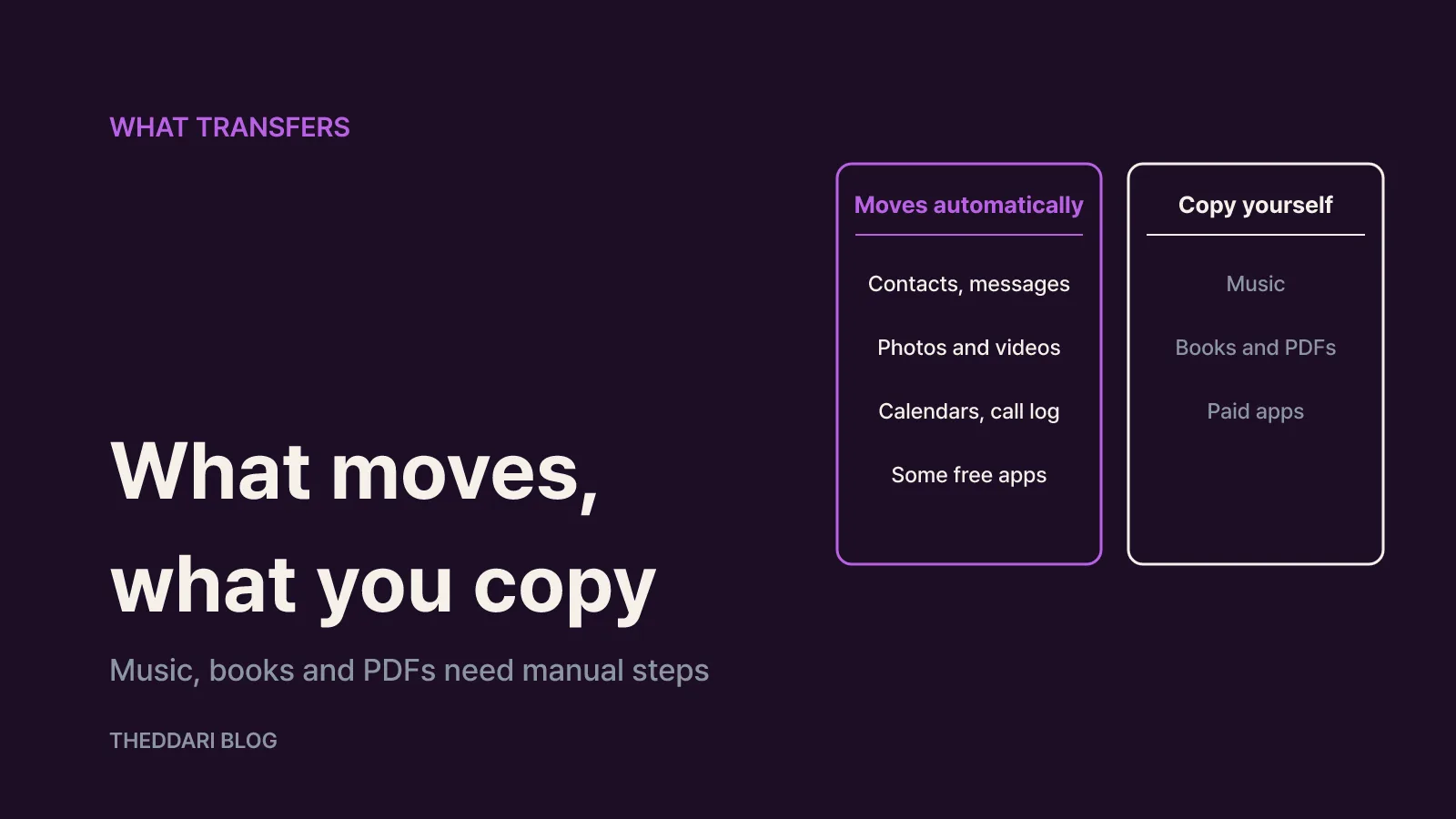
Apple lists the following as transferred by Move to iOS: contacts, message history, SMS messages, camera photos and videos, photo albums, files and folders, accessibility settings, display settings, web bookmarks, mail accounts, WhatsApp messages and media, Voice Memos, call history and calendars. Some free apps come across too, but only if they exist on both Google Play and the App Store and support the transfer feature. Afterwards you can download any matched free apps from the App Store.
Music, books and PDFs have to be moved manually, according to Apple. Paid app purchases don't carry over between platforms either, so plan to find those apps again in the App Store. Banking and authentication apps that are registered to a specific device usually need to be set up again on the iPhone following each app's own instructions. Messaging apps that aren't on Apple's list need their own backup tools.
For anything left behind, Apple's manual transfer guide covers the basics:
- Mail, contacts and calendars: add your Google account on the iPhone and they sync automatically.
- Photos and videos: connect the Android phone to a computer, copy files from the DCIM folder, then sync them to the iPhone with Finder on a Mac (macOS Catalina or later) or the Apple Devices app on a Windows PC.
- Music: sign in to your streaming app, or add music files to the Music app or Apple Devices app and sync.
- Books, PDFs and documents: move ePub and PDF files into the Books app via your computer, and install Google Drive, OneDrive or Dropbox to reach cloud documents.
When the transfer stalls or only partly completes
Apple's troubleshooting advice, grouped by symptom:
- The connection keeps dropping. Turn off apps or settings that affect Wi-Fi on the Android phone, such as Samsung's Smart Network Switch. Then go to Wi-Fi settings, touch and hold each saved network and forget it. Turning off cellular data on the Android phone also helps.
- No six-digit code appears. Follow Apple's guide to resetting and generating a six-digit code.
- Nothing happens. Restart both phones and try again from the start.
- The iPhone says it's full. If storage fills up before the transfer finishes, erase the iPhone and start again, this time moving less content or first offloading large videos from Android to a computer.
- Messages won't sign in. Check Apple's Messages help articles linked from the main guide.
Once the transfer finishes, keep the old phone intact for a day or so while you confirm photo counts, contacts, recent texts and calendar events. Fill any gaps with the manual methods above before you wipe the Android device.
Moving your phone number and eSIM
Apple says you can activate your phone number and SIM or eSIM on the iPhone during the move, and you may be sent to your carrier's website to finish activation. With the no-app method, you simply select the number on Android and tap Transfer.
Apple's eSIM setup article adds that eSIM works on iPhone XS, iPhone XS Max, iPhone XR and later. When moving an eSIM from Android or another third-party phone, contact your carrier, which can transfer the number through eSIM carrier activation or a QR code. With iOS 26 and later, some carriers and certain phone makers support eSIM transfers between Android and iPhone directly. Once the plan activates on the new iPhone, the old SIM stops working, so finish the number move before anything that depends on SMS verification codes.