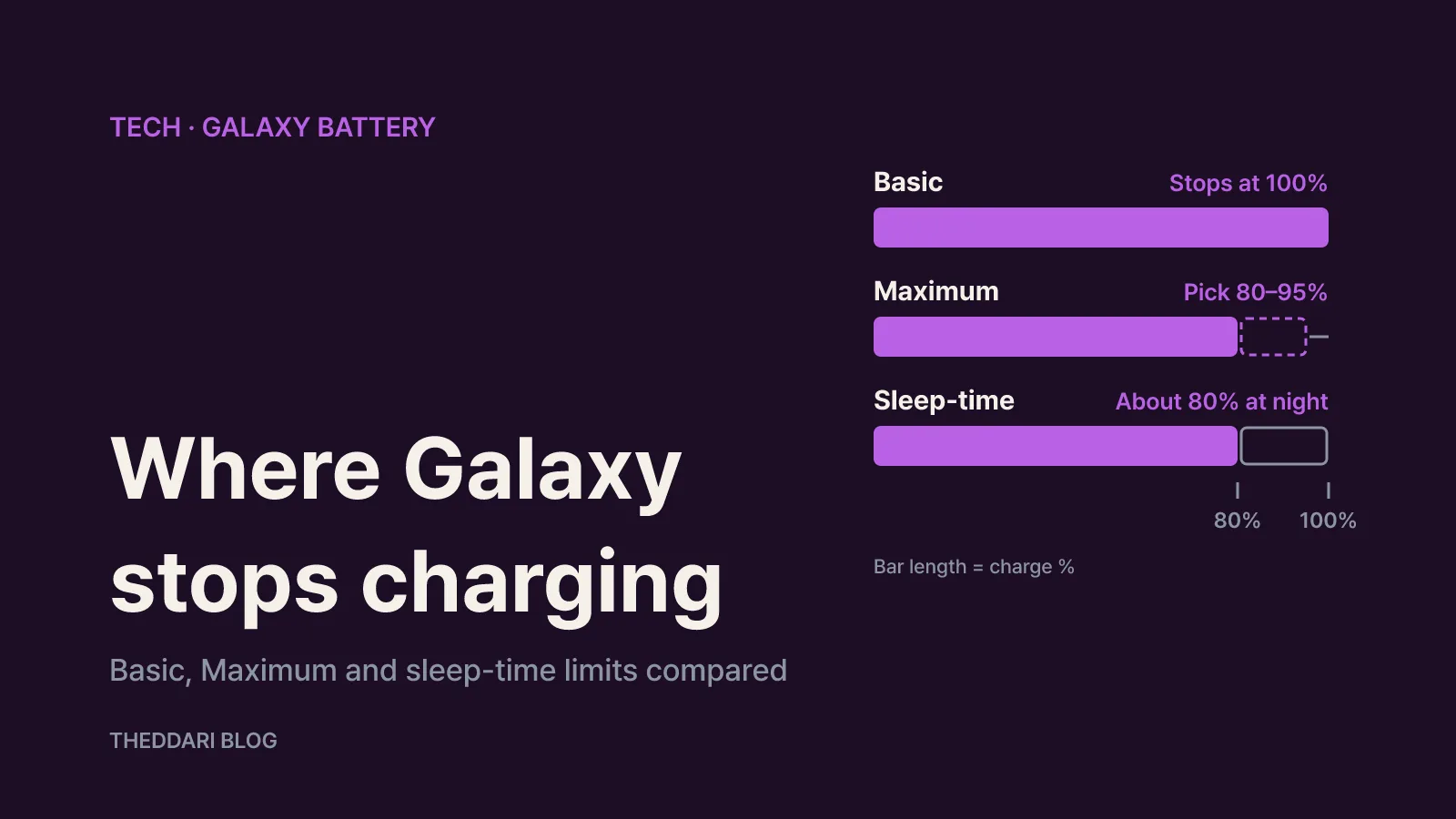
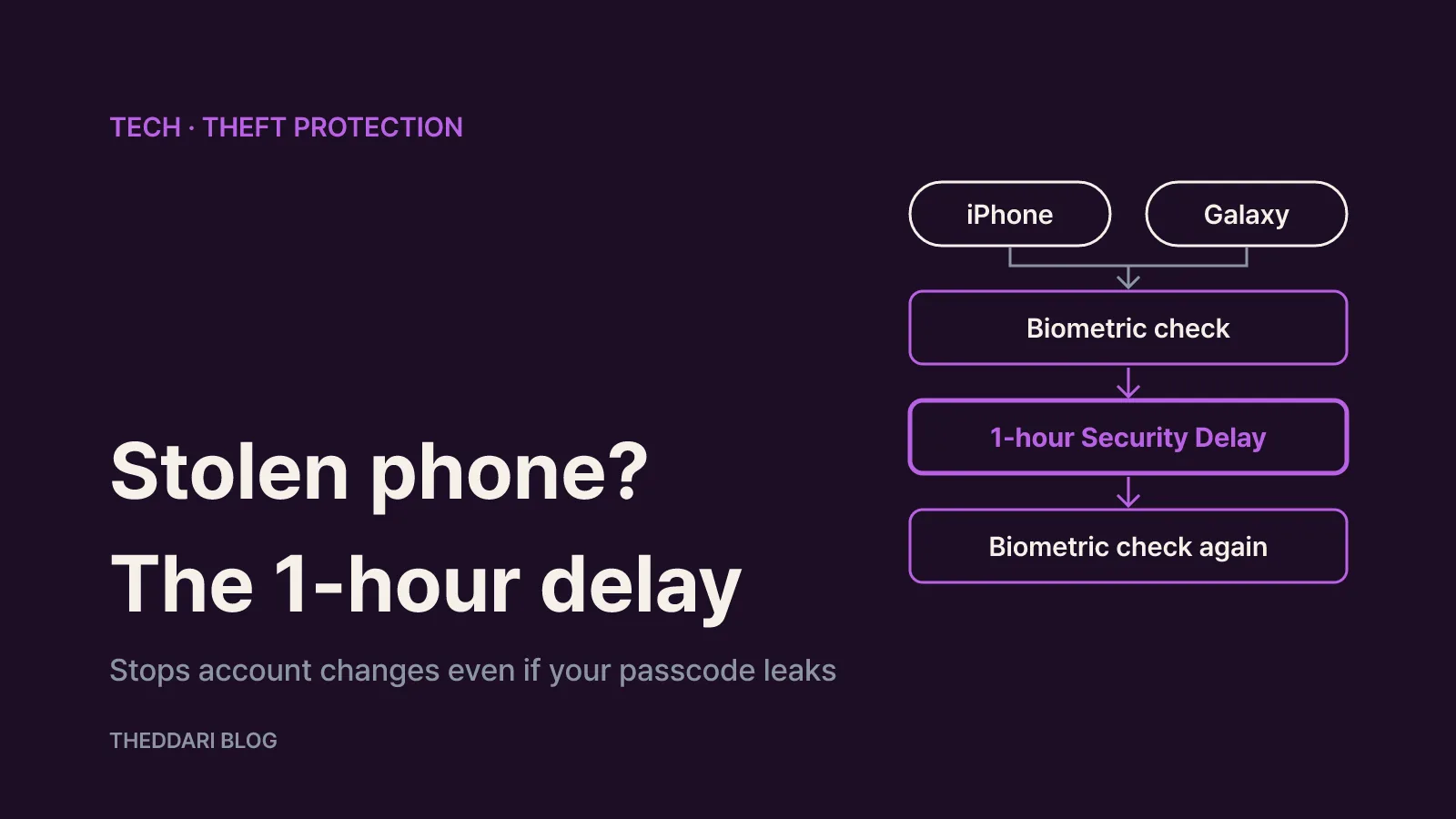
As of November 2026, the short answer is this: to protect yourself against someone who steals your phone and knows its passcode, turn on Stolen Device Protection on an iPhone (Settings → Face ID & Passcode → Stolen Device Protection) and Identity Check on a Samsung Galaxy (Settings → Security and privacy → Lost device protection → Theft protection → Identity check). Away from places you normally spend time, both require Face ID, a fingerprint or face unlock for sensitive changes, and both add a one-hour Security Delay followed by a second biometric check before the most critical settings can change. Neither can be switched on after the phone is gone, so the time to enable them is now.
Everything below comes from Apple Support, Google's Android Help Center, Samsung's support pages and Samsung's newsroom. Menu labels can vary slightly by software version, model and region, so look for the closest match if your screen differs.
Why a passcode alone is no longer enough
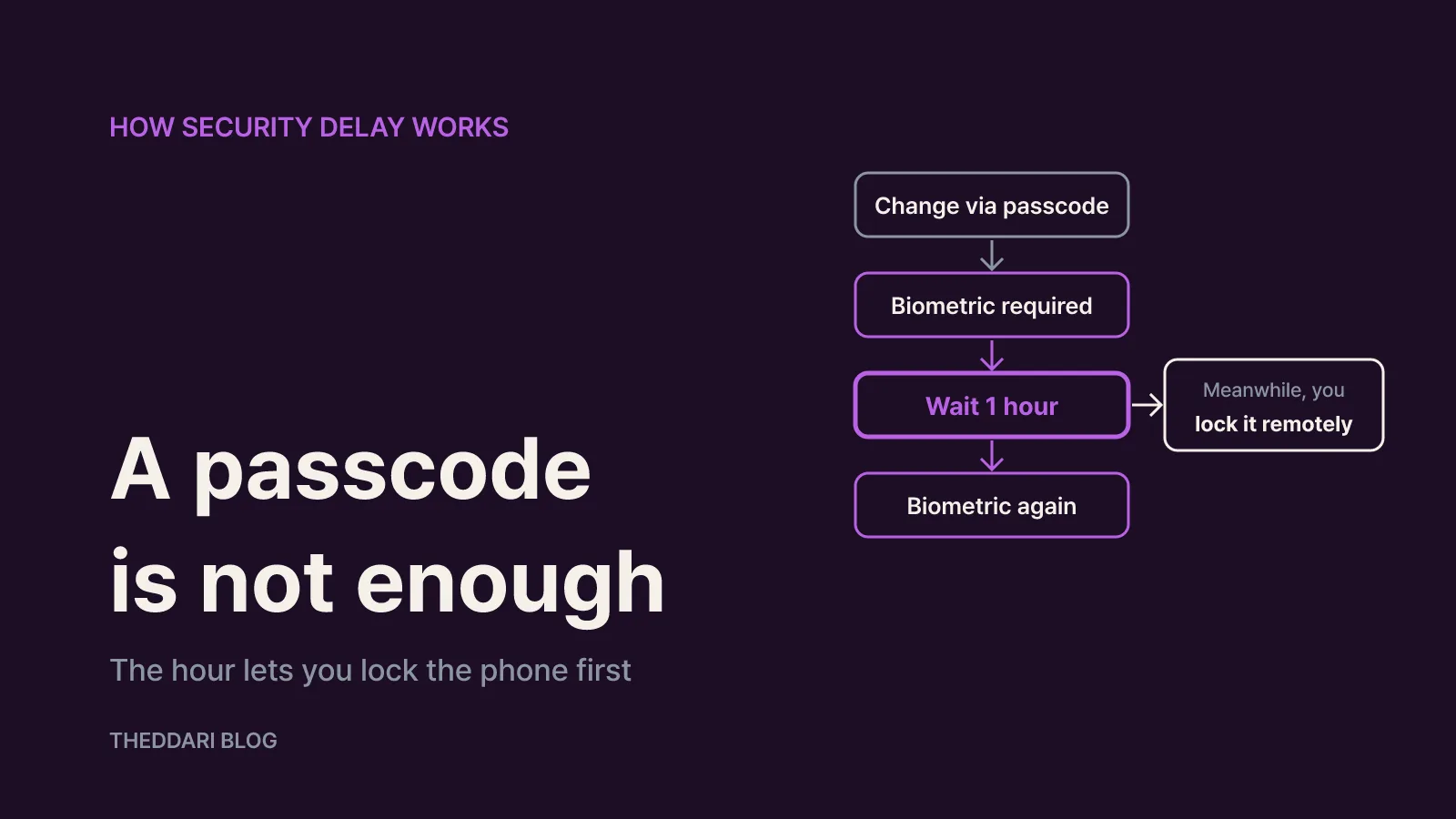
The dangerous theft scenario is not a phone that simply disappears. It is a phone taken by someone who watched you type your passcode in a bar, on a train or at a festival. With the passcode, a thief could change your account password, switch off device tracking and erase the phone, leaving you unable to locate or lock it.
Apple describes Stolen Device Protection as the answer to exactly that case. When the iPhone is away from familiar locations, accessing saved passwords or credit cards requires Face ID or Touch ID, with no passcode fallback. Higher-risk actions, such as changing your Apple Account password, require biometric authentication, an hour of waiting, and a second biometric check.
Samsung takes the same approach. Its UK support page explains that with Identity Check on, changes to sensitive security settings outside your Safe Places require biometric authentication, and certain changes add a one-hour Security Delay. The flow is: attempt the change, confirm with biometrics, tap Start security delay, wait one hour, confirm with biometrics again.
That hour is not designed to catch the thief. It gives you time to reach another device or a computer, mark the phone as lost or lock it remotely, and keep control of your account before anything critical changes.
How to turn on Stolen Device Protection on iPhone
Apple says the feature is available on iOS 17.3 and later and may already be on by default, so check first.
- Open Settings and tap Face ID & Passcode (or Touch ID & Passcode).
- Enter your device passcode.
- Tap Stolen Device Protection and switch it on.
- Under Require Security Delay, choose Away from Familiar Locations or Always.
If the option is missing or greyed out, check the prerequisites: two-factor authentication on your Apple Account, a device passcode, Face ID or Touch ID, Significant Locations in Location Services, and Find My. You can find Significant Locations under Settings → Privacy & Security → Location Services → System Services → Significant Locations & Routes. While the feature is on, you cannot turn off Find My.
Away from Familiar Locations is the default. Familiar locations generally include home, work and other places where you regularly use your phone; there you can keep using your passcode as usual. You do not type in addresses yourself. Always applies the delay and biometric-only rule even at home or at work.
If you restore a new iPhone from an iCloud backup or transfer directly from your old one, the setting comes across too, but the new phone may impose delays until it learns your familiar locations.
Which iPhone actions need Face ID only, and which trigger the delay
Away from familiar locations, these actions accept Face ID or Touch ID only:
- Using passwords or passkeys saved in Keychain
- Autofilling payment methods saved in Safari
- Turning off Lost Mode
- Opening a locked app
- Erasing all content and settings
- Using this iPhone to set up a new device, such as with Quick Start
- Setting up or transferring an eSIM
These require biometrics, the one-hour Security Delay, then biometrics again:
- Changing your Apple Account password or signing out of your Apple Account
- Adding or removing trusted devices, a recovery key or recovery contacts
- Adding or removing Face ID or Touch ID, or changing the device passcode
- Resetting all settings or enrolling in MDM
- Turning off Stolen Device Protection
You can still use your passcode for Apple Pay purchases. These security settings cannot be changed on the web at account.apple.com, and changing them from a new device may also require waiting. After changing your Apple Account password from the iPhone, the device's location may not appear on iCloud.com for a while. The delay may end early if the iPhone detects that it has arrived at a familiar location.
Apple also asks you to turn the feature off before selling, giving away or trading in an iPhone. Do it at home ahead of time, because switching it off elsewhere starts the delay.
How to set up Identity Check and Security Delay on Galaxy
According to Samsung's One UI 7 announcement, Identity Check arrived with One UI 7 as a Galaxy-exclusive, opt-in layer for the case where your PIN has been compromised. Samsung notes that availability may vary by market and model.
- Go to Settings → Security and privacy.
- Tap Lost device protection → Theft protection.
- Tap Identity check and follow the prompts.
You need biometric protection set up and must be signed in to your Samsung account. During setup you add Safe Places: choose Home, Work or Other, then search for the address and save it, or accept a recommended place. Unlike the iPhone, where familiar locations are inferred, you choose these places yourself, so keep the list short.
Outside your Safe Places, sensitive security changes require biometrics, and these changes also carry the one-hour Security Delay:
- Turning off Identity check
- Changing biometrics
- Changing other lock screen settings
- Turning off Find My Mobile
- Editing Safe Places
Google's Android Help Center describes Identity Check from the Android side. Outside trusted places, any app that asks you to verify it's you accepts only fingerprint or face, not a PIN, pattern or password. Protected actions include accessing passwords and passkeys in Google Password Manager, changing the screen lock, a factory reset, turning off Find Hub, adding or removing a Google Account and opening Developer options. A PIN still works for Private Space, multiple users, payment autofill in apps, and password and payment autofill in Chrome.
Theft Detection Lock, Offline Device Lock and Remote Lock on Android
Galaxy phones group several other locks on the same Theft protection screen; Google lists the path as Settings → Google → All services → Theft protection. Some features need Android 10 or later, others Android 15 or later. They are not supported on Android Go devices, tablets or wearables, and all of them need a screen lock.
- Theft Detection Lock uses AI, motion sensors, Wi-Fi and Bluetooth to spot someone snatching the phone and running, cycling or driving away, then locks the screen. It does not trigger if the screen is already locked, and may not trigger on stable Wi-Fi or Bluetooth connections or after repeated recent locks.
- Offline Device Lock locks the screen shortly after an unlocked phone goes offline, for example when a thief cuts its connection to avoid tracking. It can lock the screen twice in 24 hours.
- Failed authentication lock locks the device after repeated failed attempts.
- Remote Lock lets you lock the screen from android.com/lock with just your phone number and a reCAPTCHA. It needs a screen lock, an active SIM, a verified number, Find Hub and an internet connection, and works twice in 24 hours. You can add an optional security question.
Remote Lock only locks the screen; to locate or erase the phone, sign in to Find Hub. Galaxy owners can also use Samsung's Find My Mobile, so make sure both are on.
iPhone and Galaxy side by side
← Swipe to see more
| iPhone Stolen Device Protection | Galaxy Identity Check | |
|---|---|---|
| Minimum software | iOS 17.3 | One UI 7 (varies by model and market) |
| Default state | May already be on | Opt-in |
| Exempt places | Familiar locations, inferred from Significant Locations | Safe Places you add by address |
| Apply everywhere | Choose Always | Controlled by which Safe Places you add |
| Security Delay | One hour, then biometrics again | One hour, then biometrics again |
| Typical delayed actions | Account password, passcode, turning the feature off | Turning Identity check off, biometrics, lock screen settings, Find My Mobile |
| After a theft | Mark as lost on iCloud.com | Remote Lock at android.com/lock, Find Hub |
The core idea is identical: a passcode alone cannot take over your account, and the delay buys you an hour. The difference is how location is judged. Adding loosely chosen Safe Places on a Galaxy weakens the protection.
What these features do not stop, and what to do next
These tools slow down account takeover; they do not make a stolen phone harmless. With your passcode, a thief can still open apps and photos that don't ask for biometrics. Google's guidance adds a few habits worth adopting:
- Use a PIN of at least six digits, and prefer face or fingerprint unlock in crowded places.
- Set a SIM PIN under Settings → Security and privacy → More security settings → SIM lock, and change any default carrier PIN.
- Hide notification content on the lock screen so verification codes aren't visible.
- Note your IMEI from Settings → About phone for your carrier and the police.
If your phone is stolen, act in order: mark the iPhone as lost on iCloud.com, or lock the Galaxy via android.com/lock, Find Hub or Find My Mobile. Then contact your carrier to suspend the line and review signed-in devices for your banking and main accounts. That is what the hour is for.