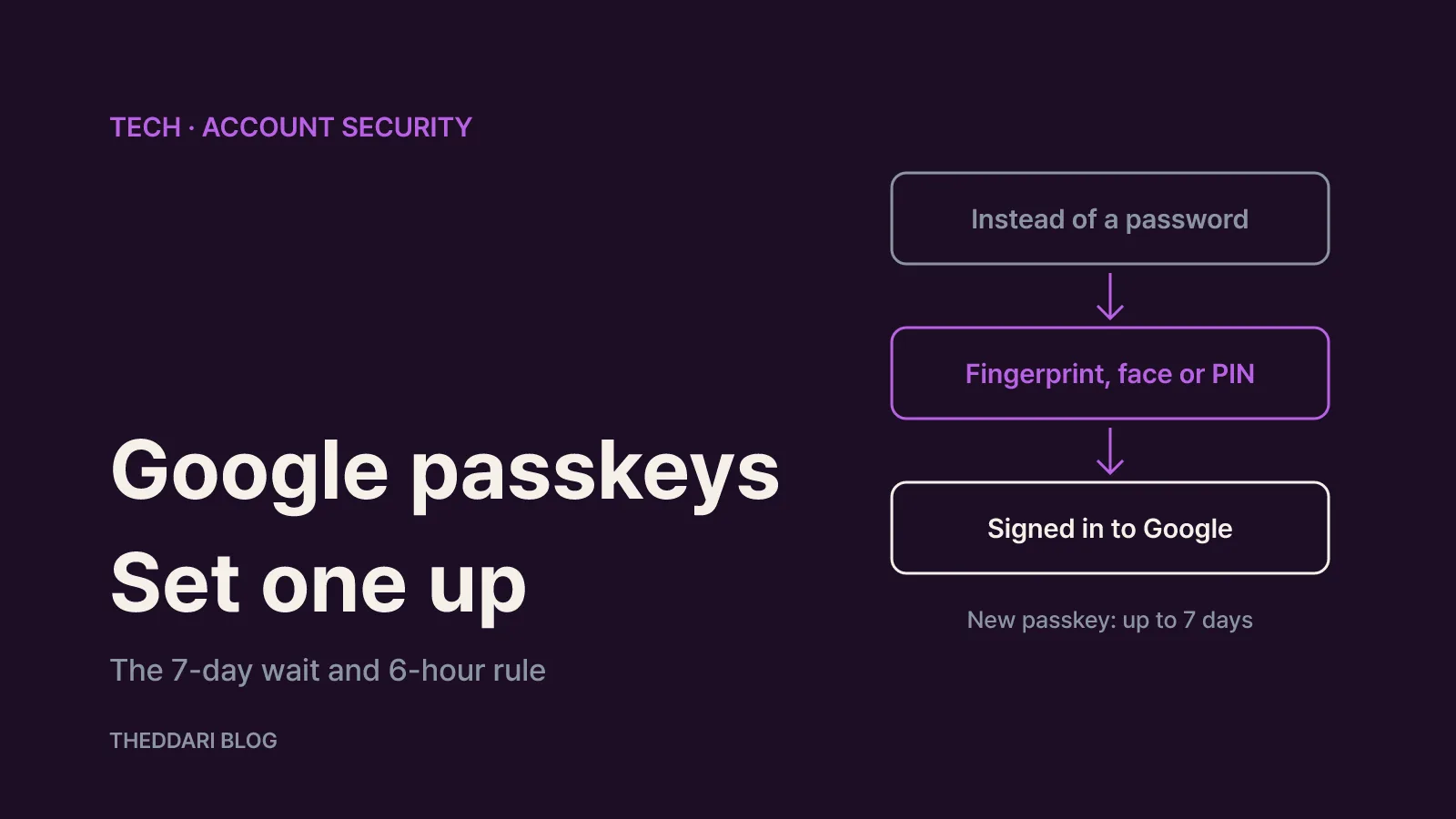
As of November 2026, you can add a passkey to your Google Account and sign in with your fingerprint, face scan or phone screen lock PIN instead of typing a password. You need a phone running Android 9 or later or iOS 16 or later with a screen lock turned on, and the setup itself is a single button at myaccount.google.com/signinoptions/passkeys. The catch is in the details: a new passkey can take up to 7 days before Google lets you sign in with it, and on Android you only have a 6-hour window to sign back in with a passkey after signing out. This guide is based on Google Account Help's passkey article and Apple's passkey security overview.
A passkey is not a password you remember or type. According to Apple, passkeys are built on the WebAuthn standard and use public-key cryptography: when you register, your device creates a key pair, and only the public key is stored on the server (Apple Support). The private key that actually signs you in never leaves your control, so a fake login page has nothing useful to steal. Google makes the same point: unlike a password, a passkey cannot be shared, copied, written down or accidentally handed to someone else, which makes phishing much harder. Your fingerprint or face data stays on the device and is never shared with Google.
What you need before creating a Google passkey
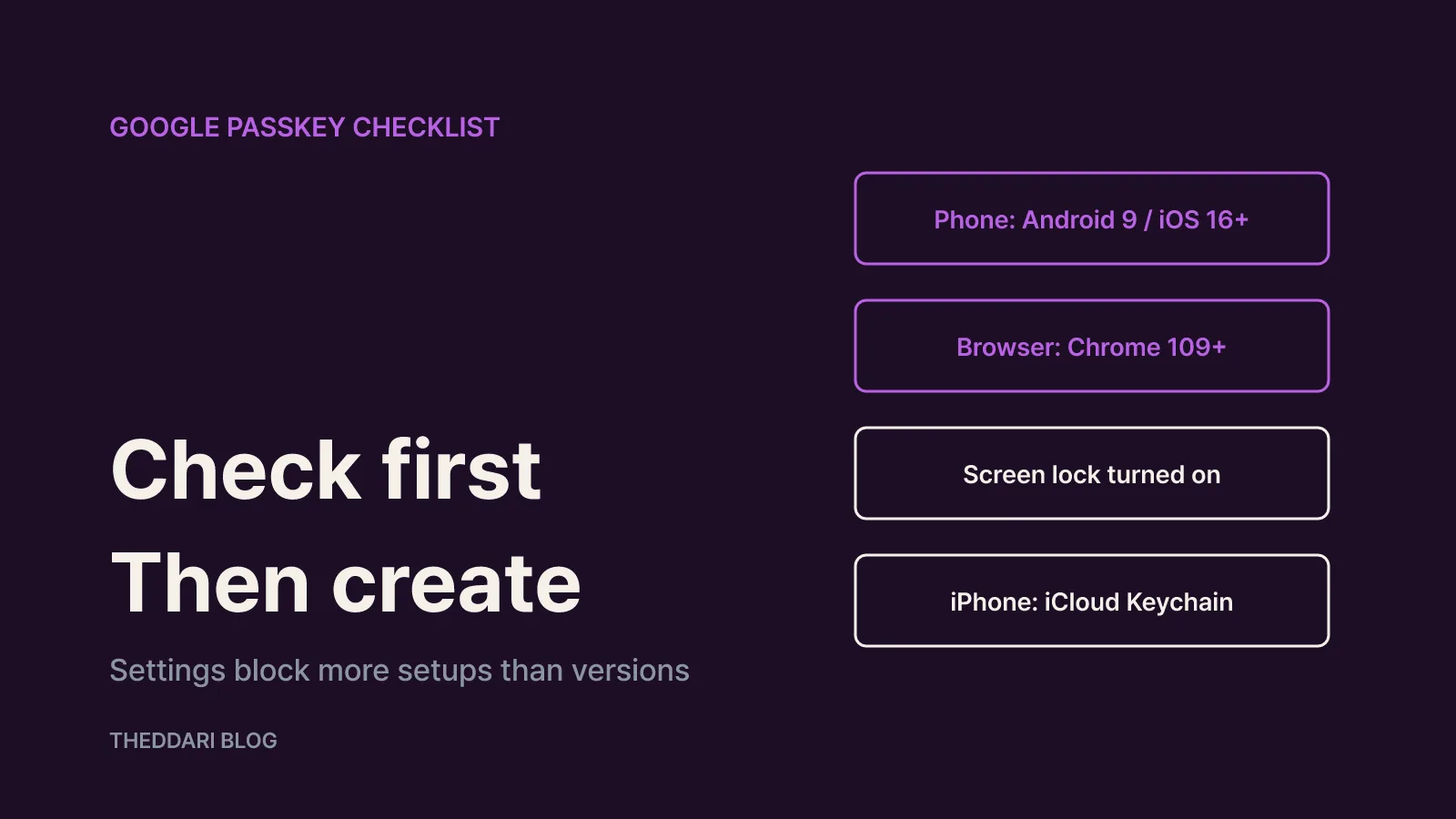
Google lists three kinds of supported hardware. Computers need Windows 10, macOS Ventura or ChromeOS 109 or later. Phones need Android 9 or iOS 16 or later. You can also use a hardware security key that supports the FIDO2 protocol. On the browser side, Google lists Chrome 109, Safari 16, Edge 109 and Firefox 122 or later (Google Account Help). Most phones bought in the last few years clear these bars easily; a locked-down work laptop with an old browser is the more likely problem.
Settings cause more failures than version numbers. Before you start, Google asks you to check three things:
- Turn on a screen lock on your phone. A device without a screen lock cannot use a passkey until you turn one on.
- Turn on Bluetooth if you want to use your phone's passkey to sign in on a computer.
- On iPhone, iPad or Mac, turn on iCloud Keychain. If it is off, you will be prompted to enable it during setup.
iPhone owners also have an Apple-side requirement. Apple accounts that use iCloud Keychain must have two-factor authentication, and if you try to register a new passkey without it, you are automatically prompted to set it up (Apple Support). You can turn on iCloud Keychain in Settings > [your name] > iCloud > Passwords and Keychain (Apple Support).
Two more caveats. Google warns that some operating systems and browsers will not let you create or use passkeys in incognito or private browsing. And if your account comes from a school or employer through Google Workspace, your admin may not allow passkey-only sign-in. You can still create a passkey and use it as a second step for 2-Step Verification or as a recovery option.
How to create a passkey on your phone or computer
The process is the same on a Pixel, a Galaxy, an iPhone or a laptop.
- On the device where you want the passkey, open myaccount.google.com/signinoptions/passkeys in a browser. Sign in or verify your identity if asked.
- Tap or click Create a passkey, then Create a passkey again on the next screen.
- Unlock your device with your fingerprint, face or PIN when prompted.
Passkeys are created per device, so repeat these steps on each phone or computer you use. After the first one, Google may prompt you to create a passkey when you sign in on another supported device. If you already use an Android phone signed in to the same account, a passkey may have been registered automatically, so it is worth checking the list at that address before creating a new one.
On iPhone, the passkey is saved to iCloud Keychain and syncs to your other Apple devices signed in with the same Apple Account. Apple says iCloud Keychain is end-to-end encrypted with keys Apple itself does not know (Apple Support). Starting with iOS 18, the Passwords app shows your passwords, passkeys and verification codes in one place (Apple Support).
To store the passkey on a hardware security key instead, choose Create a passkey and then Use another device, insert the key, and enter its PIN or touch its fingerprint sensor. The key must support FIDO2. If you added a FIDO2 key to your account before May 2023, Google says you may need to remove it from the account first.
One warning deserves attention. Google states that once a passkey exists on a device, anyone who can unlock that device can get into your Google Account, even if you have signed out. Do not create passkeys on a shared family tablet, a public computer or someone else's phone. If a relative knows your phone PIN, they effectively know your Google sign-in too.
The numbers to know after setup: 7 days, 6 hours, 30 days
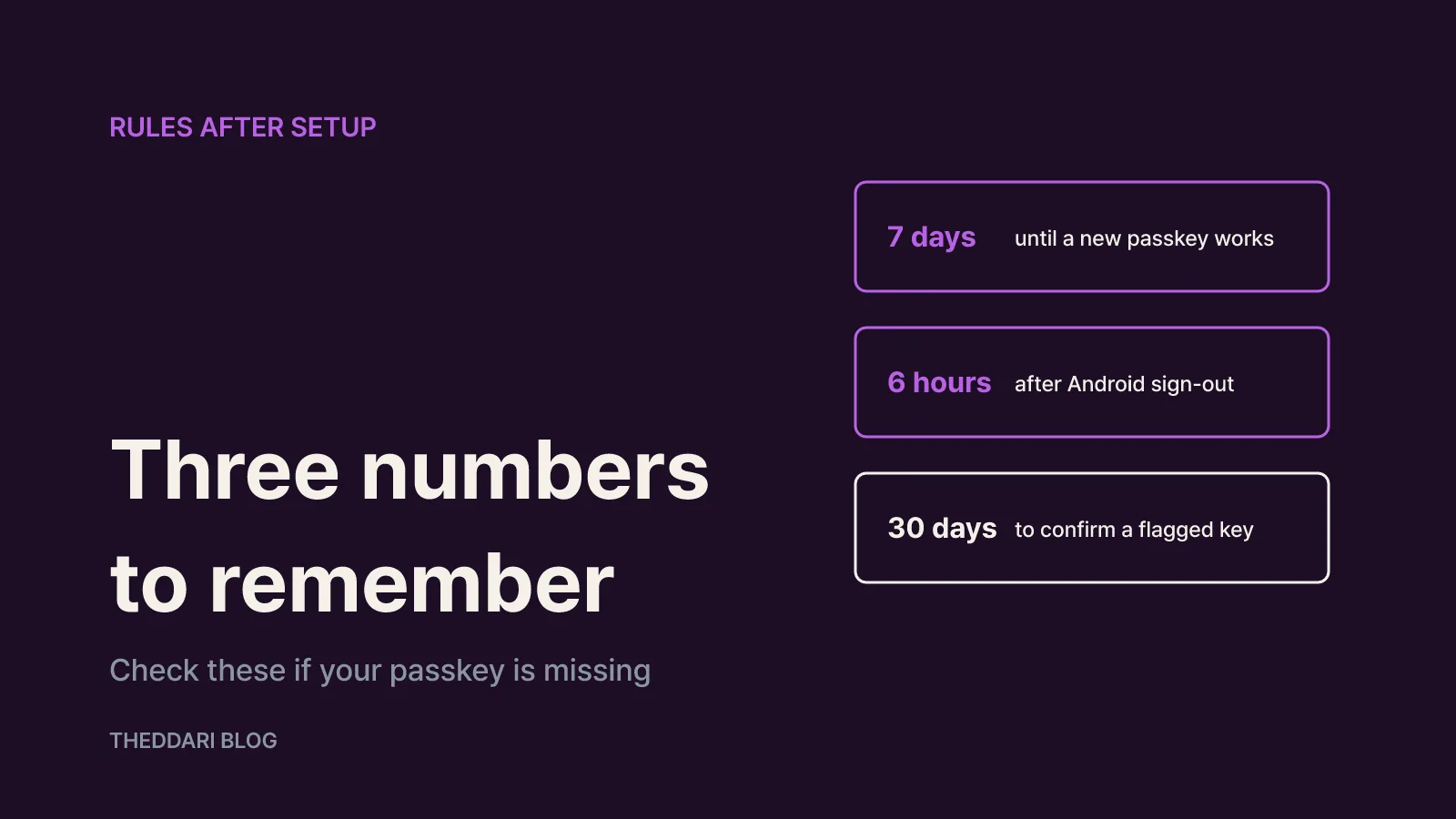
Three rules from Google Account Help explain most of the confusing behavior after setup.
7 days. A newly created passkey can take up to 7 days before it can be used to sign in. If the passkey option does not appear on the sign-in screen right after you made it, this waiting period is the likely reason. If you already have a trusted passkey or a physical security key on the account, Google may speed the process up.
6 hours. If you sign out of your Google Account on an Android device, you can sign back in with the passkey on that device for up to 6 hours. After that, you need another method such as your password. When you sign back in, Android automatically creates a new passkey and the old one expires. On non-Android devices such as an iPhone or a computer, you can sign back in with a passkey at any time after signing out.
30 days. If Google detects a suspicious passkey, it turns it off and alerts you. You then have 30 days from the alert to confirm that you added it; otherwise the passkey is removed from your account. If you did not create it, do not confirm it, and change your password and review your devices instead.
If a passkey exists but does not show up when you sign in, Google suggests checking that the device has a screen lock, that Skip password when possible is on at myaccount.google.com/security, and that the 7-day window has passed. Google also notes that choosing Try another way often makes it offer passkeys less frequently; signing in with your passkey repeatedly reverses that.
Signing in on a computer with your phone's passkey
You do not need a passkey on every computer. On the Google sign-in page, enter your username, then choose Try another way > Use your passkey. A QR code appears. Scan it with your phone's camera, tap Sign in with a passkey on the phone, and confirm with your fingerprint, face or PIN. Bluetooth must be on for this to work. The next time you sign in with the same computer and phone pair, your phone shows a verification notification automatically.
If you use 2-Step Verification, signing in with a passkey skips the second step, because using the passkey already proves you have the device. That removes the wait for an SMS code, but it also makes your phone's screen lock the real front door to your account. If your PIN is something easy to guess, change it before you rely on passkeys.
If you lose your phone or want passwords back
Google says adding a passkey does not change or remove your existing sign-in and recovery methods. So if your phone goes missing, you can sign in from another device and delete the lost phone's passkey:
- Go to your Google Account and open Security & sign-in.
- Under How you sign in to Google, select Passkeys and security keys.
- Choose the passkey you want to remove and delete it.
Passkeys that Android created automatically are not removed from that list. Instead, go to Your devices > Manage all devices, pick the device and sign out. If several sessions share the same device name, sign out of all of them. If you keep being prompted for a deleted passkey, check whether a third-party password manager is still holding a copy.
On the Apple side, it helps to know how recovery works. Even if you lose every Apple device, passkeys can be restored through iCloud Keychain escrow: you authenticate with your Apple Account, respond to an SMS sent to your registered phone number, and then enter a device passcode. Apple allows only 10 passcode attempts, and after the tenth failure the escrow record is destroyed (Apple Support). Remembering an old iPhone passcode or setting up an account recovery contact protects you here.
If you would rather type your password by default, open Security & sign-in, find How you sign in to Google, and turn off Skip password when possible. Google will then ask for your password first, and if you use 2-Step Verification, your passkey can serve as the second step.
The short version: create one passkey on a personal phone with a strong screen lock, check after about a week that sign-in actually works, never create one on a shared device, and know where the delete button is before you need it.