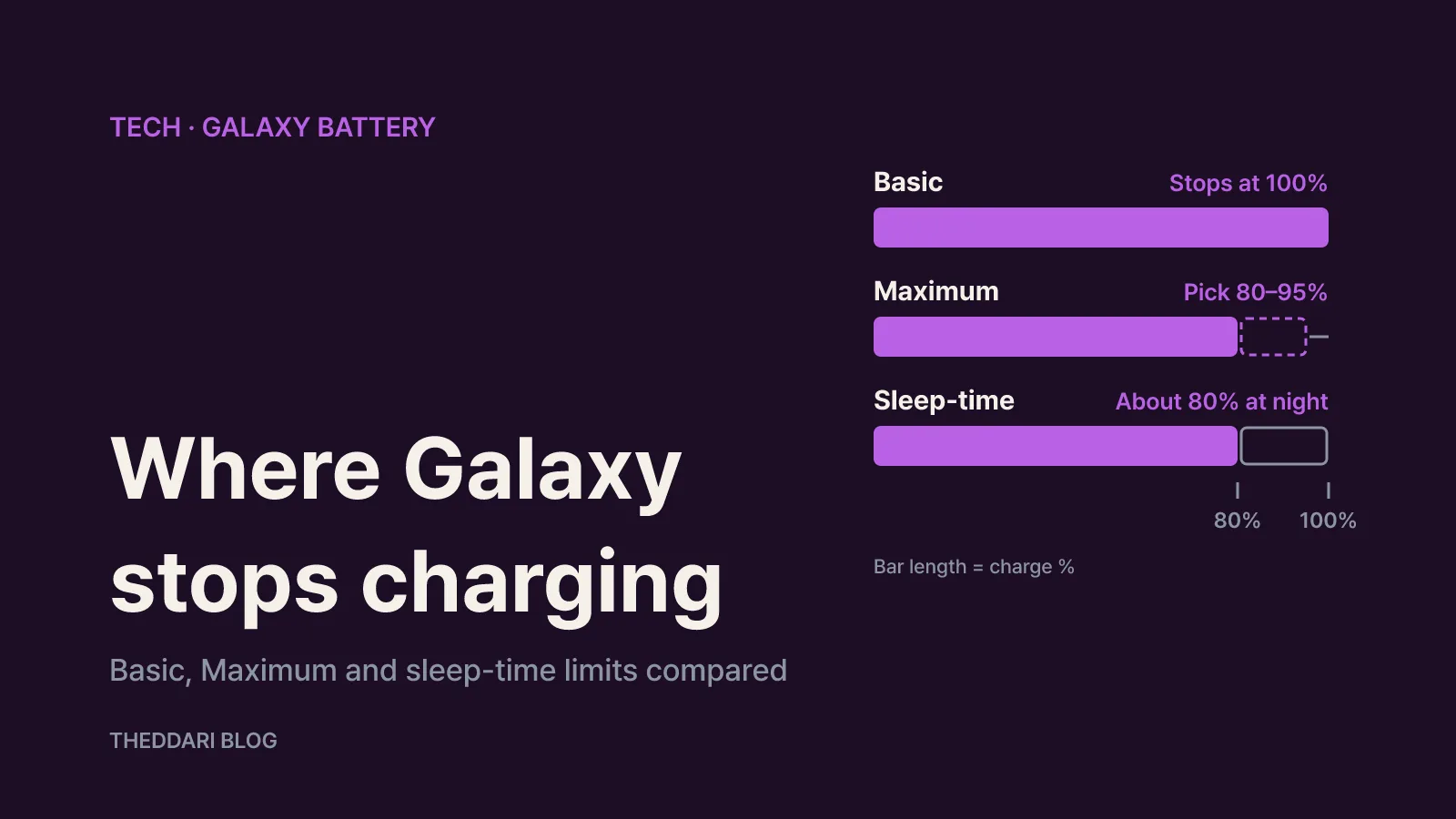
As of November 2026, Samsung's support pages describe battery protection on Galaxy phones as a setting under Settings > Battery > Battery protection with three behaviours. Basic charges to 100%, stops, and starts again only when the level falls to 95%. Maximum stops at a limit you choose: 80, 85, 90 or 95%. A sleep-time option (shown as Adaptive in Samsung's One UI 6.1 guide) holds the battery around 80% while you sleep and tops it up to 100% just before you wake. According to Samsung's Korean battery protection guide, the ability to pick the Maximum limit arrived with One UI 7.0.
That means a phone that seems stuck at 80%, or one that sits at 79% while plugged in, is usually doing exactly what it was told. Below you will find where each mode stops and restarts charging, how to find the setting, why the menu varies between software versions, how to pick a limit that matches your day, and a short checklist for when the battery will not fill. Samsung notes that menu names and behaviour can vary by model and software version, so compare each step with your own screen.
Three modes, compared by where charging stops
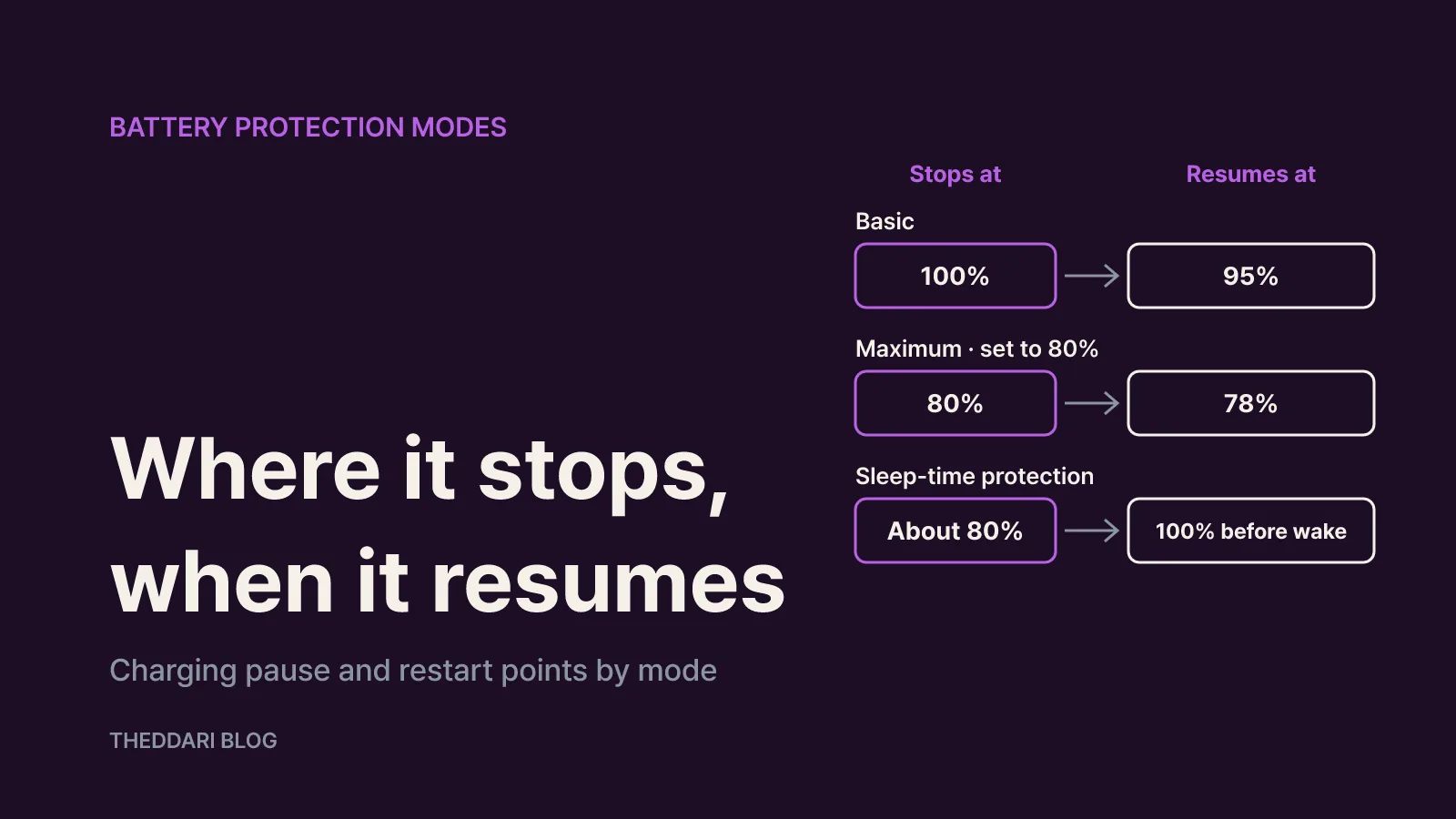
The idea behind battery protection is simple: reduce the time the battery spends sitting at a full charge. Samsung's UK battery optimisation guide puts it directly: charging your battery to 100% for a long period can reduce its lifespan. The modes differ in where they stop and when they resume.
Basic (the default) stops charging at 100%. From then on the phone runs on charger power rather than drawing down the battery. If you use the screen or apps work in the background, the level can drift down, and charging resumes automatically at 95%. Because nothing happens between 100% and 95%, the phone avoids constant small top-ups.
Maximum charges only to the limit you selected. Once it gets there, the phone again runs on charger power. If the phone is drawing more power than the charger supplies, the level can dip briefly, and charging restarts when it is roughly 2% below the limit. Pick 80% and charging resumes at 78%. If the battery is already above your limit when you plug in, the phone does not charge further and simply holds the current level.
Sleep-time protection adjusts charging around your sleep pattern. During sleep it stops at about 80%, then finishes charging to 100% shortly before you usually wake up, so the battery does not sit at full all night. Samsung's One UI 6.1 guide says the Adaptive option charges to 100% an hour before you wake. There are conditions:
- Learning your sleep pattern typically takes about two weeks, or three to four days if a pattern already exists from your previous phone.
- It needs consent to Samsung's customisation service and related permissions.
- It may not work if your sleep schedule is irregular.
- Withdrawing that consent, or using some environments such as multi-user mode, can switch the phone back to Basic.
How to turn on battery protection
Samsung lists three routes. If the first one is missing on your phone, try the second.
- Open Settings > Battery > Battery protection, turn it on and choose a mode.
- Open Settings > Device care > Battery > Battery protection. Some models keep the battery menu inside Device care.
- Add a Quick panel button. Swipe down from the top right, tap the edit (pencil) icon, tap the option to add buttons, choose Battery protection from the system tiles and tap Done. You can then toggle it with one tap.
If you choose Maximum on a supported phone, set the limit on the same screen. When you cannot find the menu, typing 'battery protection' into the search bar at the top of Settings is the fastest shortcut.
While protection is limiting the charge, a battery protection message may appear in the status bar, on the lock screen, on the Always On Display, in notifications or on the Battery screen in Settings. If you see it, the pause is intentional.
Why the menu differs by One UI version
If a screenshot you found online does not match your phone, the One UI version is the most likely reason. You can check it under Settings > About phone > Software information.
← Swipe to see more
| One UI version | What battery protection offers | Source |
|---|---|---|
| Before 6.1 | A single switch that limits charging to 85% | Samsung UK |
| 6.1 | Basic, Adaptive and Maximum; Maximum stops at 80% | Samsung UK |
| 7.0 and later | Maximum lets you choose 80, 85, 90 or 95% | Samsung Korea |
In the 6.1 guide, Adaptive meant using Maximum while you sleep and switching to Basic before you wake, with sleep time estimated from how you use the phone. Samsung's current Korean guide describes the same behaviour as sleep-time battery protection, and a Samsung Electronics Service article refers to an 'optimised' setting, so the label can change between versions even when the idea is the same.
An update does not guarantee every model the same options. Samsung's 6.1 page notes that charging optimisation may vary by Galaxy model. If all you see is an 85% switch, that switch is the protection your phone supports.
Choosing 80, 85, 90 or 95%
Samsung says a lower limit does more for long-term battery health. The trade-off is obvious: a lower cap also means less charge available each day. So the right limit depends on how often you can reach a charger.
- 80% suits people who can plug in several times a day at home, at work or in the car. It also matches the 20–80% range Samsung UK recommends for everyday use.
- 85% is the next step if 80% leaves you short in the evening. It is also the fixed value on phones older than One UI 6.1.
- 90% fits long commutes or days when a charger is hard to reach.
- 95% or Basic works for travel days and long outings. Remember that Basic also waits until 95% before recharging.
A practical way to decide is to start at 80% and watch your battery level at the end of the day for a week. If you regularly drop below 20%, move up to 85%, then 90% if you still need more. Keeping the Quick panel button handy makes it easy to switch protection off for a single long day and charge to 100%.
If you charge overnight and want a full battery each morning, the sleep-time option is designed for you. Because it needs around two weeks of learning and a regular schedule, shift workers may find Maximum at 90 or 95% more predictable.
When the battery will not reach 100%
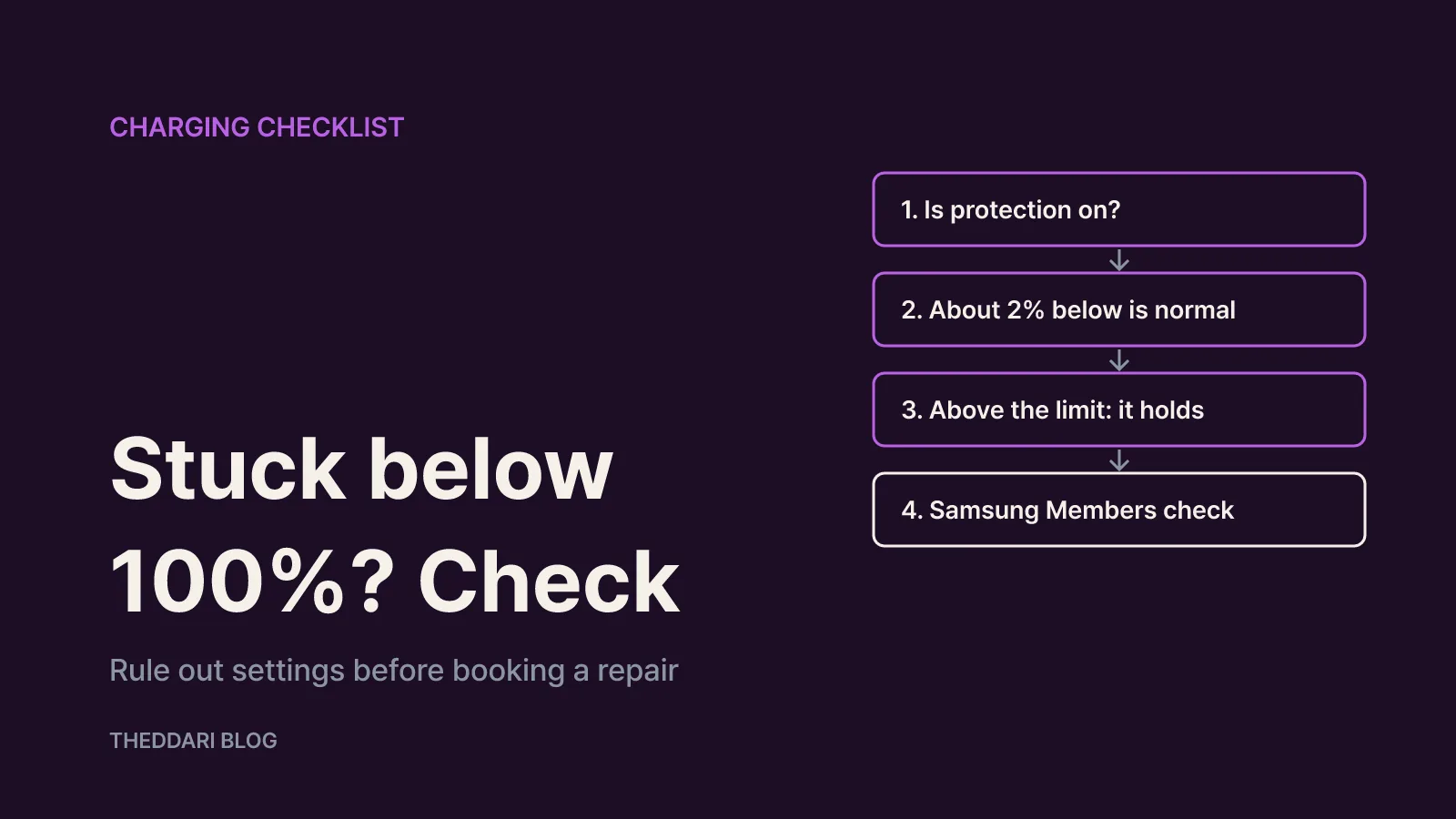
Work through these checks before assuming a hardware fault.
- Check whether protection is on. Samsung's service centre advice is that a phone charging only to 80% is likely set to Maximum or the optimised option.
- Stopping about 2% below your limit is normal. With an 80% cap, sitting at 79% just means the phone used a little power; it will resume at 78%.
- Staying at 100% on Basic is also normal. At 100% the charger powers the phone directly, so if the charger supplies as much power as the phone uses, the reading stays at 100%. With a wireless pad or a low-output charger, the level may fall and then recharge from 95%.
- Plugging in above your limit does nothing. A phone set to 90% that is connected at 93% simply holds that level.
- If sleep-time protection never kicks in, confirm the customisation consent and permissions, and give it time to learn a consistent schedule.
- Still unsure? Run a self-diagnosis. Samsung suggests the diagnostics in the Samsung Members app, which include wired and wireless charging tests.
If diagnostics flag a problem, or the phone will not charge even with protection switched off, book a repair check.
Settings that pair well with battery protection
Battery protection controls how and how far the phone charges. It does not restore capacity an ageing battery has already lost, and it does not reduce how much power your apps use. Samsung's UK optimisation guide suggests a few habits alongside it:
- Aim to stay between 20 and 80%. There is no need to run the battery flat before charging.
- Keep software and apps up to date, since updates can include battery improvements and fixes.
- Use Background usage limits under Settings > Device care > Battery to put rarely used apps into Sleeping or Deep sleeping, which stops them running in the background.
- Customise Power saving by long-pressing its Quick panel icon to choose what it changes.
- Trim display drain with a shorter screen timeout, lower brightness and Dark mode on AMOLED screens.
A lower limit such as 80% leaves less energy for the day, so cutting background and display drain makes that lower cap far easier to live with.